PeopleCert · Official Book Automation · Dinno 0.7.0 · 7 September 2026
From Word to InDesign: a measured typesetting pipeline
This document answers two questions. What did we gain — with every claim tied to a measurement. And how do you use it — what you prepare, what you press, and what the designer finishes in InDesign. The reference book is ITIL Experience Official Book EN v5.1: 363 Word pages, 6,610 paragraphs, 162 tables, 234 inline pictures.
Summary
Today the Official Book is typeset by hand: content is copied out of Word, styles are applied by hand in the InDesign template, and tables and figures are rebuilt. The request says so in its own words:
"tables, objects, and figures do not transfer reliably and must be recreated manually"
So the most expensive part is entirely manual today. And all of it has to fit inside the three-to-four-week window between Partner Launch and Commercial Launch.
What we built does this instead: the book open in Word is read on one press, a service works out what it should become, and our InDesign panel lays it out in the designer's open document. On the reference book that takes about five minutes, and nobody has to sit and watch it.
The rest of this document explains where those four numbers come from, what is still missing, and how the pipeline is run. In order: what the process costs today, one run measured line by line, the gains and the limits, then the operator's guide.
The process today, and its six hand-offs
- Authoring. The Official Book is written in a single shared Word file by authors, subject-matter experts and editors. The requirement document draws the consequence itself: multi-author, so the formatting is naturally inconsistent.
- Three beta rounds. After beta 2 the file is styled in Word according to the company style guide; at the end of beta 3 content and styling are final.
- The typesetting window. There are three to four weeks between Partner Launch and Commercial Launch, and the InDesign typesetting must be finished inside it. This is the one hard schedule fact in the whole record.
- Manual typesetting. The content is copied out of Word and formatted by hand using the existing template and the required styles.
- Chapter split. Word keeps every chapter in one file; InDesign wants one file per chapter, because its Book feature needs separate files to produce an automatic table of contents and continuous page numbers.
- Dual maintenance. From that point on, every correction is applied by hand to both the Word file and the InDesign file.
The supported route does not help either: when the Word file is imported directly, only basic styles (heading, body) partly survive. Tables, objects and figures do not — they are recreated by hand.
The part that can be counted
That flow has six hand-offs: authors to the file; the file to whoever applies the style guide after beta 2; the finished Word to the designer; the designer's copy-paste into the template; the split into per-chapter InDesign files; and every post-launch correction into two documents. What replaces them is one button and one consent step.
The scale of the work
The reference book is not a friendly sample. It is a real file, and we chose the hard one.
| What | How many | What doing it by hand means |
|---|---|---|
| Word pages | 363 | every one passes through the designer's hands |
| Paragraphs | 6,610 | each one needs a paragraph style |
| Tables · cells | 162 · 963 | a pasted table refuses its cell style, so each is rebuilt |
| Inline pictures | 234 | placing and sizing |
| Drawings · shapes | 305 · 306 | boxes, icons, decorative shapes |
| Icon cards (a 1×2 table pattern) | 127 | each with its own fill and alignment |
| Text boxes (info boxes) | 48 | invisible to Word's own body text |
| Styles defined (custom) | 333 (210) | 148 of them declare an explicit size |
| ToC entries · index fields | 170 · 2,810 | must be regenerated in InDesign |
| Bookmarks | 857 | cross-references depend on them |
| Package size | 121.9 MB | 120.3 MB of it media; 36 JPEGs alone are 112 MB |
All of it has to fit the three-to-four-week window, and then be maintained twice over for every correction.
And the input is not always the same
The same corpus holds a second book the pipeline already worked on. The comparison is the strongest evidence in the project that real input is not what you assume:
| Measure | Product (worked) | Experience (broke it) | ratio |
|---|---|---|---|
| package | 9.5 MB | 121.9 MB | 12.8× |
| empty paragraphs | 229 (5.7%) | 1,252 (24.6%) | 5.5× |
| tracked insertions / deletions | 0 / 0 | 1,886 / 1,608 | — |
| direct paragraph spacing | 428 | 2,503 | 5.8× |
| "keep with next" (a semantic way to control page breaks) | 346 | 16 | 0.05× |
| text boxes · icon cards | 19 · 51 | 48 · 127 | 2.5× |
Read it this way: Product's author controlled pagination with semantic tools. Experience's author did the same job by brute force — empty paragraphs and direct spacing. Our first pipeline was built on the semantic signal, and this book does not give it. Today's pipeline therefore rests on measurement, not on the author's discipline.
One run, end to end
Everything below is from a single run: 7 September 2026, the whole book, session ts_544261e4e3bf. The times are from the panel's own log.
| Time | What happened | Who did it |
|---|---|---|
| 11:05:46 | an empty document was created and its geometry read back (595.3 × 841.9 pt, facing pages) | InDesign panel |
| 11:07:28 | read + check + plan finished: 80 sections, 3,992 components, 401 pages predicted. The consent card appeared in the panel | Word pane → engine |
| 11:07:33–38 | 244 media keys staged (five seconds) | panel |
| 11:07:39 | the command loop began — 4,198 commands | panel |
| 11:10:35 | finished: 3,627 applied, 0 deferred, 80 sections | panel |
| 11:10:40 | the three post-program passes (floats, bands, page backgrounds) completed | panel |
Reading takes about 105 seconds; drawing took 2 minutes 56 seconds on this run. Drawing time varies with InDesign's own process state — a repeat of the identical program took 5 minutes 37 seconds — so plan for roughly two minutes of reading and three to six minutes of drawing, and expect a human to be involved exactly once: to press the consent button.
What "3,627 applied" actually counts
The service does not draw anything itself. It works out what should happen and writes it down as a list of instructions, which can be read and checked before a single page is touched. On this run the list held 4,198 instructions, and every one of them that puts content on a page was carried out:
| What was placed | Count |
|---|---|
| paragraphs, with their styles and their emphasis | 3,298 |
| tables, with their cells and column widths | 162 |
| figures — pictures, and two shapes redrawn natively | 119 |
| info boxes, which Word's own body text cannot see | 48 |
| total placed | 3,627 |
So 3,627 of 3,627 is not a percentage or an estimate — it is the sum of those four lines, and "0 deferred" means nothing was left out. The remaining instructions in the list are structural: the whitespace the author used, the page breaks they asked for, and the opening and closing of each section.
Measured gains
Every row was measured on a run and corresponds to something a reader would see.
| What | Measure | What a reader sees |
|---|---|---|
| Lost page breaks | 0 | all 38 of the author's page breaks are in place; chapter openers land on the right page |
| Hidden content | 0 | no section closes with text InDesign cannot show; everything in the source is on a page |
| Line spacing | 1,004 paragraphs | computed from Word's own rule — not a fixed 12 pt, but 13.6 / 14.7 pt |
| Display heading | 7 paragraphs | a 44 pt headline is no longer set as 10 pt body text |
| Theme colours | 6 fills | boxes whose fill comes from the theme are no longer left unpainted |
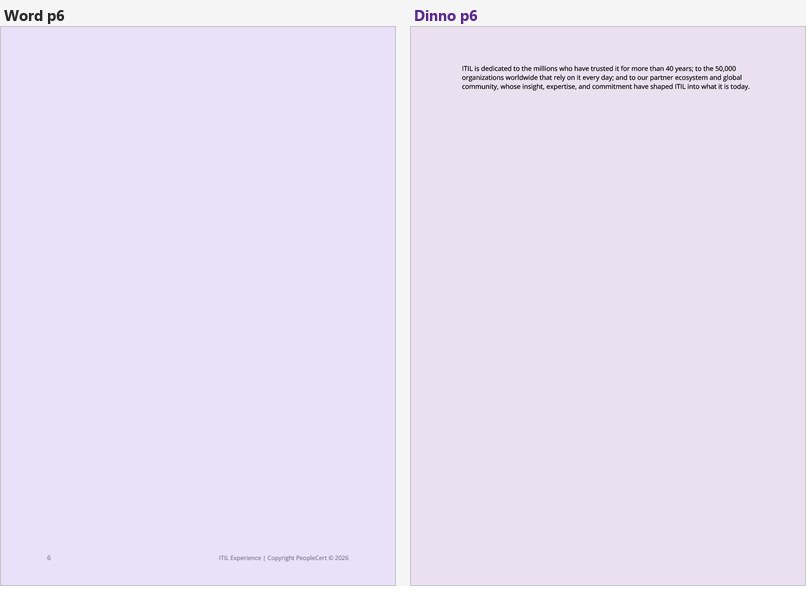
| Full-page dedication | 1 page | the whole page is lavender, not a card at the top; on the backmost layer, verified by reading it back |
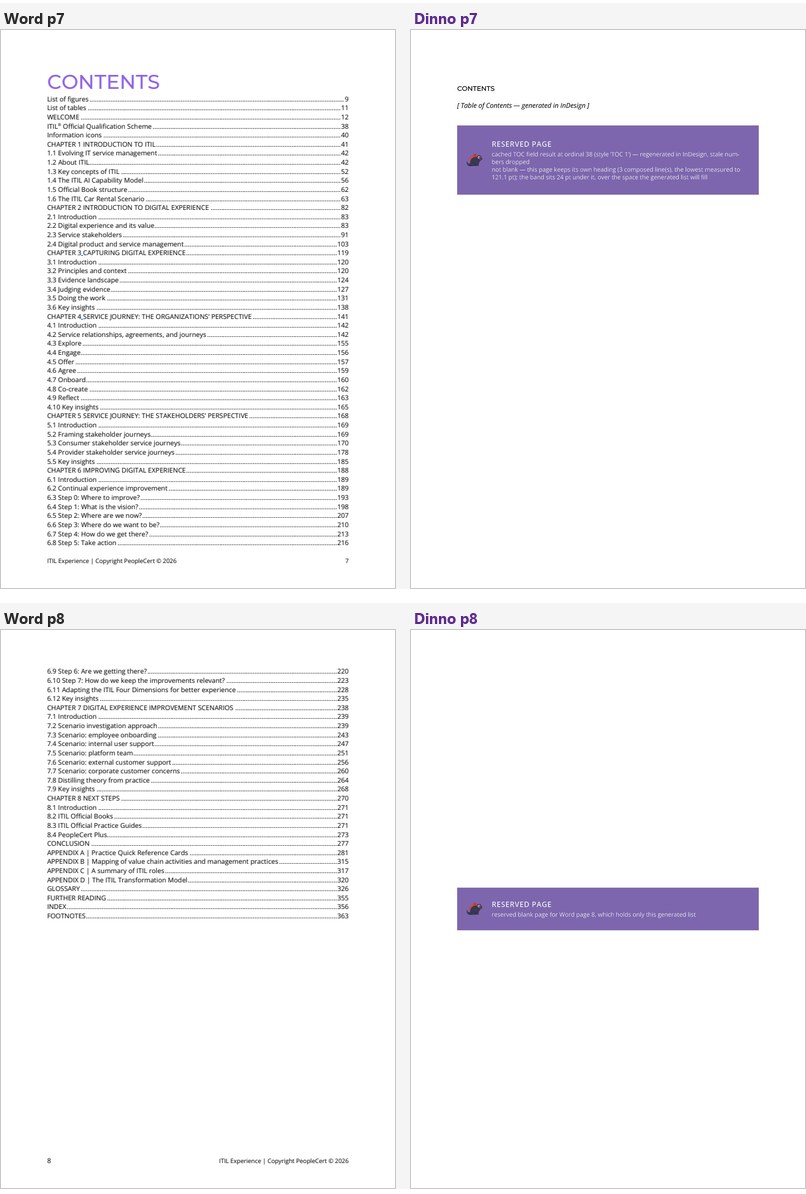
| Deliberately skipped pages | 6 / 6 | the pages held for generated lists are marked with a band that says why they are empty |
| Run font face | 469 paragraphs | a headline set in Montserrat in Word is no longer composed in Open Sans; every glossary term is Semibold |
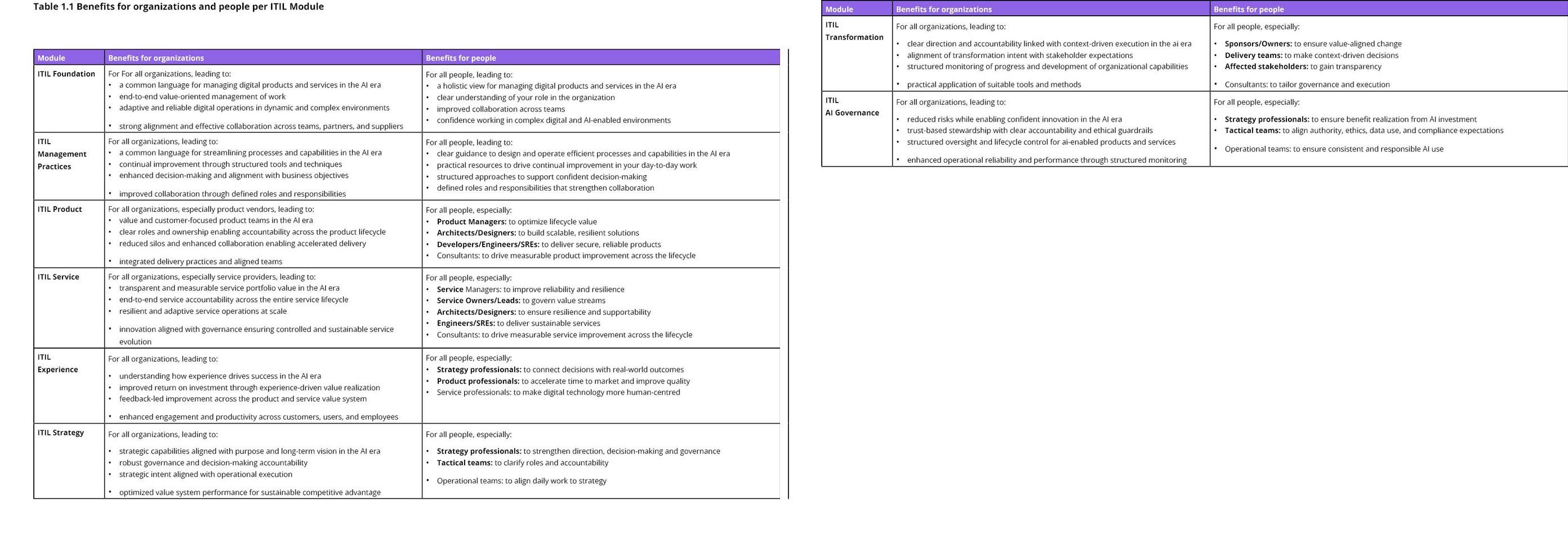
| Table cell size | 671 paragraphs | cell text takes the size Word gives it, not the style's; one cell that could not be shown at any height now fits |
| Figure alignment | 13 figures | a figure centred in Word is no longer flushed left |
Stakeholder criteria and where they stand
The criteria were set in a meeting as a series of target states rather than a single KPI. As recorded, with what is measured against each today:
| Criterion | Measured today | Status | |
|---|---|---|---|
| K1 | ~90% ready InDesign from the source; only small manual corrections | every content command in the program is on a page (3,627/3,627), hidden content 0, lost page breaks 0. Page boundaries do not yet match Word: 387 pages against 363, and 53 of 80 sections land exactly on their page prediction | partly |
| K2 | Reduce manual work, especially copy-paste and formatting fixes | the copy-paste step is gone; styles, tables, boxes, figures and colours are applied automatically | met |
| K3 | Time: ~2 days → 2–3 hours | about five minutes of unattended machine time. This does not include the designer's finishing work (below) | exceeded |
| K4 | Simplify: fewer tools, fewer hand-offs | six hand-offs become one button and one consent. The criterion was defined as counting hand-offs | met |
| K5 | Preserve the business rules; do not copy the script verbatim | 61 rules inventoried, each with its source and its .NET counterpart, plus a three-stage port plan | on track |
| K6 | Do not over-depend on InDesign; the platform must be swappable | the core is tool-agnostic, the source and the executor are pluggable, two contracts are frozen. But the second executor is a label today — an intention, not an implementation | architecturally |
| K7 | Prioritise correctly: the training materials are already ~80% automatic, the Official Book is not | all of this work is on the Official Book | met |
| K8 | Give a per-piece effort estimate | the run series carries the measured effect of every fix; the remaining work is listed with its numbers | material ready |
Two time figures, and we should be honest about them. The stakeholder's ~2 days → 2–3 hours target and the "~3 days" that appears in another document may not measure the same thing; the second is already recorded as "a reported figure, to be verified, per document or per version to be clarified". We present both as stakeholder-reported rather than as verified measurements. The only thing we measured is machine time: five minutes.
Honest limits
Everything below is measured and reported by the run itself — a reader does not have to discover it.
| Missing | Measure | Why, and what it would take |
|---|---|---|
| Section continuity | +24 pages | every section opens on its own page. 51 of 80 sections start on a Word page the previous section is still occupying (the sections' Word spans sum to 407 while the distinct pages they cover are 356). This is the largest remaining structural difference. The fix works with composed heights, not page numbers |
| Cover art | 1–2 pages | Word's cover image lives in a header part; the anchored-drawing reader scopes to the body. Output pages 1 and 2 are correctly sized and mastered but blank. Either read the header parts, or accept the cover as a designer-placed asset |
| Decorative shapes | 306 | the run says so before it draws anything: no shape phase exists, and the harvest carries no fill, stroke or geometry to rebuild them from. Two of them do travel as geometry, but neither reaches the page: only the rectangle is rebuilt natively, and the run refuses to draw it on a page it shares with the contents; the triangle is not a shape this rail rebuilds and leaves an empty frame |
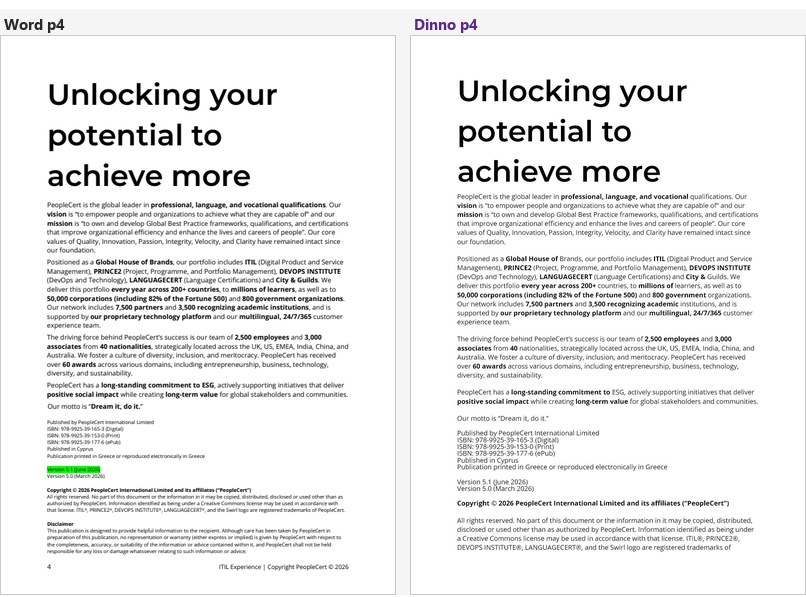
| The extra front-matter page | 1 page | the last two paragraphs of Word page 4 do not fit our page: 104.9 pt of excess against 6.44 pt of slack, of which 68.9 pt is size and leading (five imprint paragraphs are authored 7.5 pt and compose at 10) and 36.0 pt is paragraph spacing |
| A page-covering wash with no page | 1 page | Word page 6's only content is a full-page lavender rectangle anchored to an empty paragraph that takes no vertical space, so it shares a page with the contents page. The panel now draws such a wash only on a page that is its own and refuses with the measurement otherwise. The real fix is for that source page to own an output page |
| Style capitalisation | 21 paragraphs | the capitals come from a style-level flag the harvest does not read |
| Headers, footers, page numbers | 25 parts | these live on InDesign master pages and are not carried from Word in the manual process either |
How we know
There is one rule in this project: a number is either measured or it is not stated. What that looks like in practice:
A rule is placed in a measured gap, not chosen by taste
The pipeline treats a headline as a headline when its type is at least twice its style's size. That "twice" was not picked: counting all 5,098 paragraphs found twenty above one and a half times, seven above twice, and the same seven above three times. Nothing at all sits in between — so the rule selects exactly the seven paragraphs a person would have selected by eye.
The plan is checked before anything is drawn
Because the plan is written down before it is executed, nine of its numbers are verified first. That has paid for itself twice: once a change passed all its own tests while the real plan reserved two pages where five were needed; and once a run was stopped before it started because the plan carried 37 of the author's page breaks against the 36 expected. The check was right and the expectation was wrong.
A fix is not live until its piece is updated
Three pieces work together, and each is updated separately. One run measured Word's line-spacing rules as if they did not exist, because the reading side had been fixed while the copy actually running inside Word was still the previous one. Nothing failed — the run simply measured the old behaviour. Now every run proves which version of all three is live before it is trusted.
A check that cannot fail is not a check
An early safety check searched its own output for the words "passed" or "failed" — and matched either one just as happily, so a broken build reported itself as fine. Every check now tests the result and prints what it proved, and each one is exercised against a deliberately wrong input every time it runs.
The same program, twice
A fair question: are 387 pages and 53/80 a stable property of the pipeline, or a lucky run? The cleanest experiment in the record answers it, and the input was proven identical rather than assumed: with the run's own identifier removed, the two plans are byte-for-byte identical — 4,198 instructions each.
| Measure | Run 21 | Run 22 |
|---|---|---|
| pages used | 387 | 387 |
| commands applied | 3,627 | 3,627 |
| sealed sections · lost page breaks | 0 · 0 | 0 · 0 |
| sections exactly on prediction | 53 / 80 | 53 / 80 |
| reserved-page bands · floats placed | 6/6 · 15 | 6/6 · 15 |
| defects | 30 | 31 |
| drawing time | 2m 56s | 5m 37s |
The honest formulation: the same program produces the same book, and the defect tally and the wall-clock do not repeat. The single extra defect is one page handed back at one section close — one of the ±1 decisions taken at every close. What this buys is a noise floor: a change of one defect or one page is inside the noise, and a change of nine sections or nineteen pages is not. That is what makes the run-to-run comparisons meaningful.
Three times a measurement killed a plausible belief
1. "The book is almost right: 364 pages against Word's 363."
That one-page gap was the project's headline number and it was meaningless. It was alignment by cancellation, not alignment: the front matter under-spent, the body over-expanded, and the two happened to nearly agree at the last page — while no page after page 6 was where Word put it. Two independent under-spends were measured and fixed. The total got worse and the book got right: the arithmetic was written down in advance (367 against 363) and the run measured 368. The record's own conclusion: "a total that moves away from the source's total while every page lands where the source put it is the correct trade. The previous +1 was two errors of opposite sign."
2. "The page budget is roughly right; the output comes out fine."
The planner billed every chapter one page for its opener. But the source spends that page itself — the chapter heading sits on a Word page, and that page was already counted. Every chapter was billed twice for the same page. Nothing downstream could see it: the plan reserved the frames, the panel filled what it needed and handed the empty tail back. The inflation showed up only as one defect line per section. One term, one line: predictions 470 → 399 with pages used unchanged, and sections landing exactly on prediction 8/80 → 47/80. A second book, checked only after the change was written, showed the same ~20% inflation.
3. "Run 5 hung because InDesign had been open for 23 hours."
That was written down as the fix after a run with a fresh InDesign passed. The next hang came on an InDesign started 24 minutes earlier, and the explanation died. This time a stack was taken — with a debugger, from the thread burning the core — and the process table found the real correlate: a forgotten shell loop from the previous day polling the panel every 12 seconds. The next run, with the process table proven clean, hung anyway — so that explanation was too strong as well. Four stacks, read thread by thread, converged on one mechanism: the script request reaches the main thread as a window message, the main thread opens a nested message pump waiting for the callback, and the callback waits for the main thread. Each side waits for the other. The fix removed that pump entirely. The next run finished the whole book in three minutes, and eleven consecutive runs have completed since.
And the record corrects itself in public
The long evidence document carries its own retractions inline: a page-break census corrected from 36 to 37 to 57 carriers; three of the author's own statistics corrected in one sitting ("18.7% of the book" became 695 paragraphs once paragraph-mark formatting and text-box runs stopped being counted as body paragraphs); a ratio denominator admitted to be wrong by about 30%; a test comment corrected because "it did when it was written; it does not now". In one investigation 48 claims were corrected along the way, three of them the author's own, and nine proposed claims died before reaching the plan — each recorded, because each would have sent a later session down a wrong path.
Part 2
How to use it
This part is for the people who will run it: what you prepare in Word, what you press, what you will be waiting for, what comes back, and what the designer finishes in InDesign. Setting the tools up on a machine is a one-off IT task and is not covered here.
Who does what
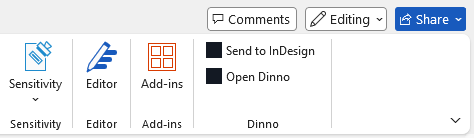
Three pieces work together. In Word a side pane reads the open book. Behind it a service works out what the book should become. In InDesign a panel asks the designer for permission and then lays the pages out. You use two of them, and each has its own set of tabs:
The Word pane: Send · Typeset · Report · Checks · Settings · Info. The InDesign panel: Receive · Mapping · Convert · Transfer · Co-pilot · Settings · Info. A whole book uses Typeset and Report in Word and Transfer in InDesign; the rest is covered further down or belongs to other work. Convert is deprecated in 0.8.0 and removed in 1.1: bring a Word book in with Typeset, as below.

Before you press anything
Five things the run will not fix for you. All five are yours to check, and they take under a minute.
- Turn markup off in Word.
Review → Tracking → Display for Review → No Markup. Comment balloons and displayed revisions change where Word breaks its pages, so a book read under them would describe a document nobody is looking at. The service refuses such a reading rather than quietly using it. The pane's own Info tab carries this same instruction under "Before you run". - Leave only the target document open in InDesign. The panel writes into the document that is open, and the permission card says "the document open in InDesign" in the singular. If your template, last month's book and a scratch file are all open, close the others first — that is the one instruction that removes all doubt about where four thousand commands are about to land.
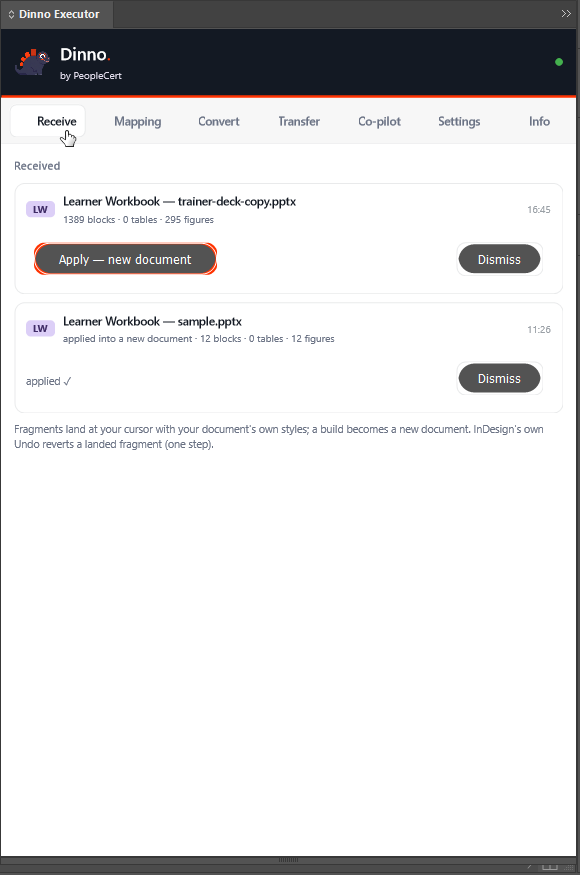
- Open the Dinno panel in InDesign — and click its Transfer tab. This is the step nobody guesses. The panel opens on Receive, and the permission card only exists on Convert and Transfer. Nothing announces an arriving transfer: no badge, no tab switch, no sound. A designer sitting on Receive sees an empty panel while Word says it is waiting for them.
- Do not work in InDesign while it runs. The panel does one thing at a time; anything else you ask of InDesign queues up behind a few thousand commands.
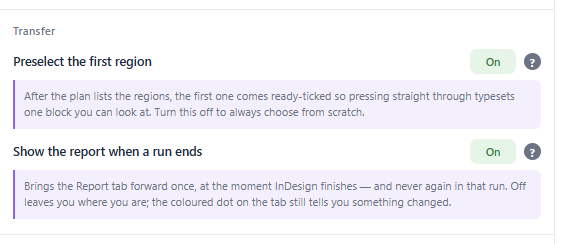
- Know that the pane will change tabs by itself. It brings Report forward once when a run starts and once when it ends. That is a setting, not a glitch — see the two settings below.
Running a book
In Word: the Typeset tab
The tab opens with a Document card naming your file, and three status rows — Word, Engine, Panel — which are the three things that have to be true before anything can run. Each row carries a ? that opens its own explanation, and a row that is in trouble opens its explanation by itself and closes it again once the fault clears.
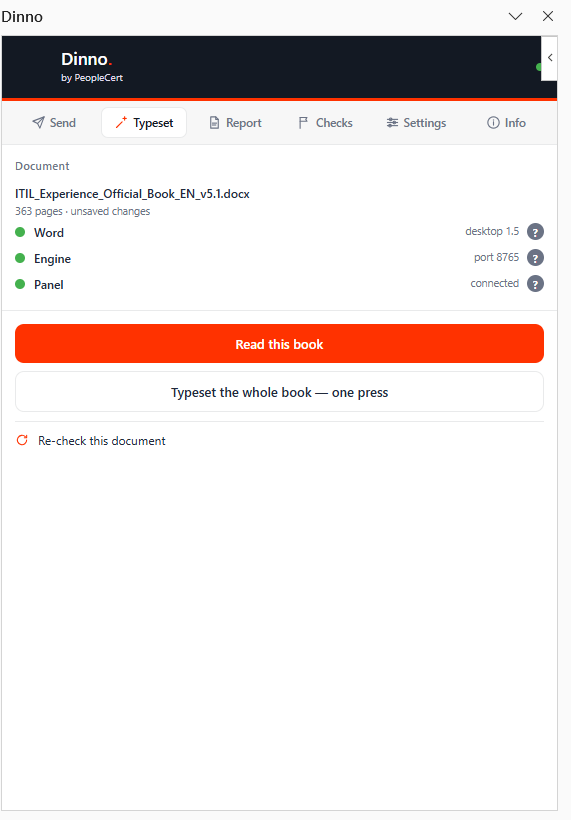
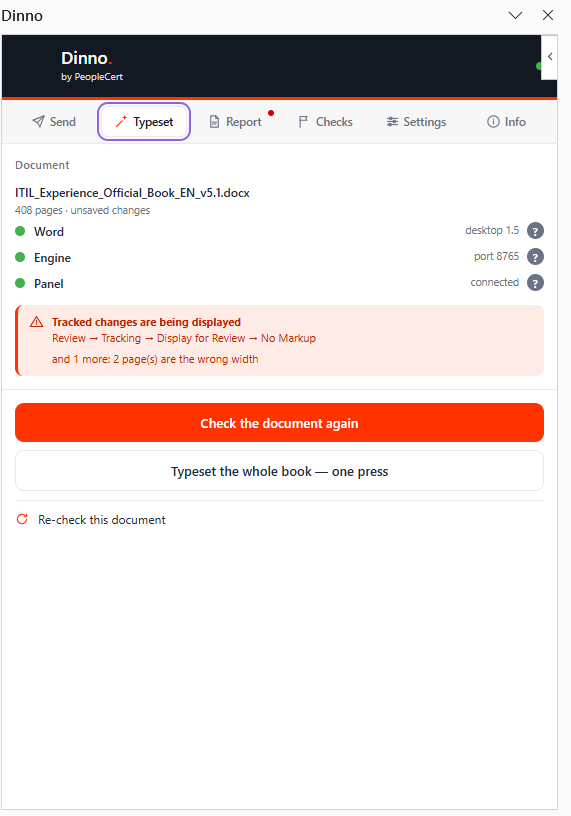
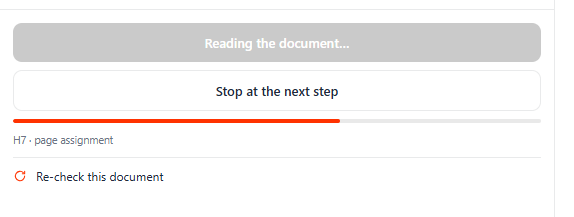
The button's label is the whole progress display. It walks through:
Read this book  →  Checking the document…  →  Reading the document…
   →  Sending it to the engine…  →  Planning the transfer…
   →  Handing it to InDesign…  →  Waiting for the designer
   →  InDesign is typesetting…  →  Start a new transfer
There are more labels than these, and each one is a real state rather than a spinner: "Retry connection" when nothing answered, "Pair this device in Settings" if the service asks for pairing, "Reconnect" after three failed status checks, "Start over" when a transfer was declined or abandoned, "Try again" after a fault in Word. If the button is not moving, read it — it is telling you which of those you are in.
Choosing what to typeset
The process stops in exactly one place, and that place is the only decision that is yours: "Regions — what to typeset". A region is one block of the book — a chapter, or the front matter — found by planning the document. Each row shows its name and which Word pages it covers, with All and None above the list.
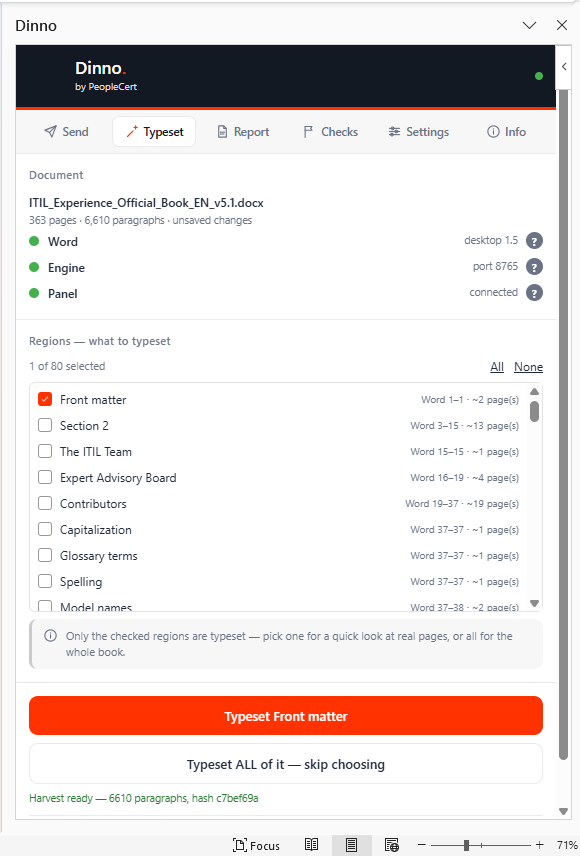
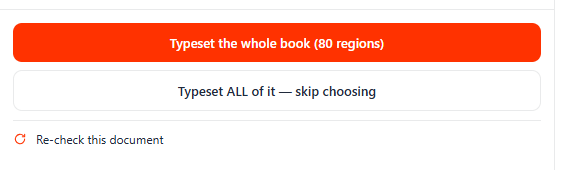
Nothing is written while it plans. That is worth knowing: you can read and plan a book as often as you like without touching any InDesign document. Picking one chapter is the fast way to look at real pages before committing to the whole book.
In InDesign: giving permission
The panel raises an amber card titled "Signal received — Word transfer ready" naming the document and what is about to happen:
ITIL_Experience_Official_Book_EN_v5.1.docx
80 region(s) · 3992 component(s) · Word 363 page(s) → predicted 401
whitespace: 363 kept as spacing · 44 as page break(s) · 2 excluded as tracked deletions
This will add pages and text to the document open in InDesign.
                                        [ Start transfer ]   [ Dismiss ]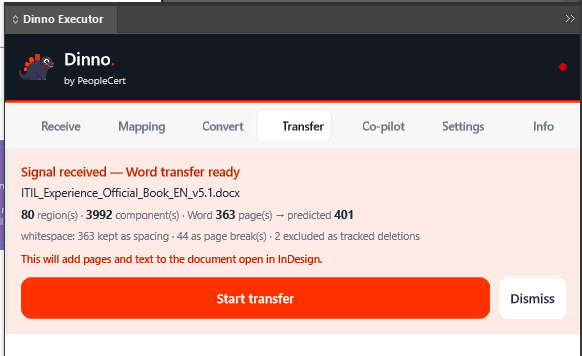
Three things worth knowing:
- After ten minutes Word is told nobody started it. The card itself does not expire — it stays on screen until you answer it, and pressing Start transfer even then still runs the transfer.
- Start transfer is safe to press twice — the card disappears before a second click can land.
- Dismiss is not silent. Declining is reported back to Word, so nobody waits ten minutes to be told that nobody started it.
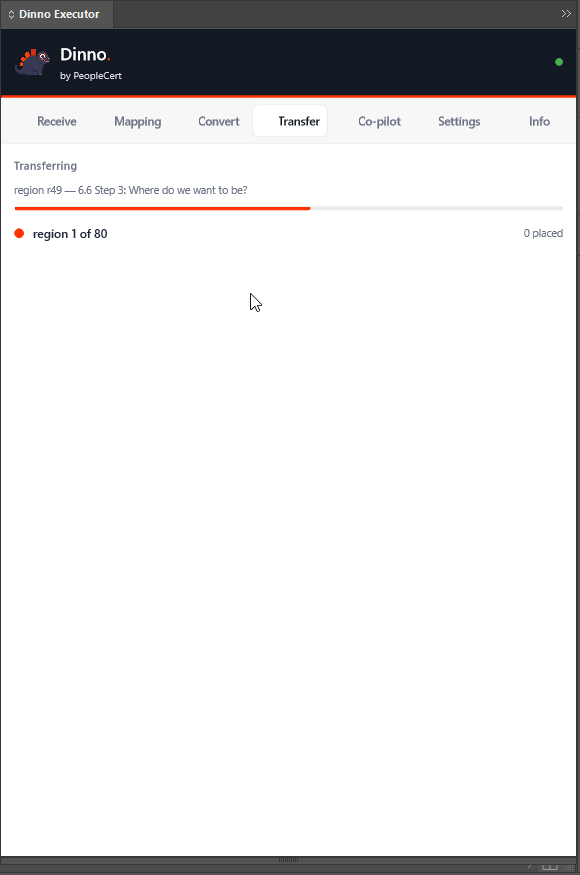
How long it takes
On the full reference book — 363 Word pages — measured over eleven consecutive runs:
The layout time varies with how busy InDesign itself is: two runs of the identical book took 2 minutes 56 seconds and 5 minutes 37 seconds. Plan for six.
What comes back
Two reports, one on each side, and they answer different questions. The panel says what happened to the pages. The pane says what happened to the run.
In InDesign: where every page went
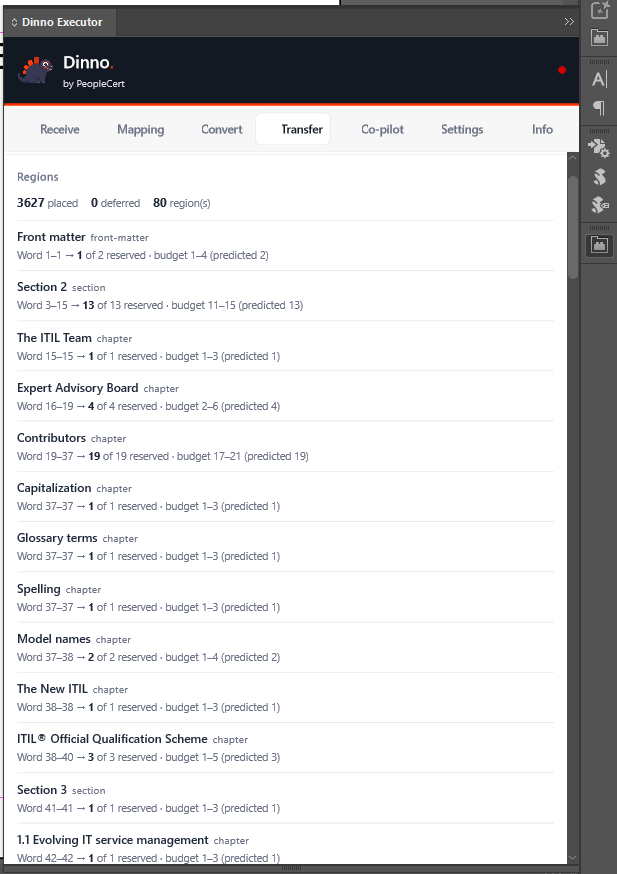
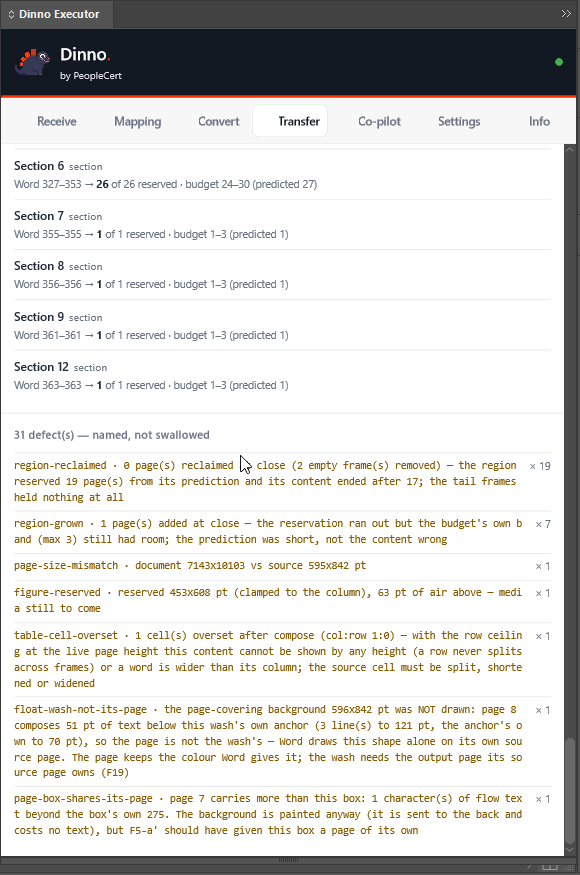
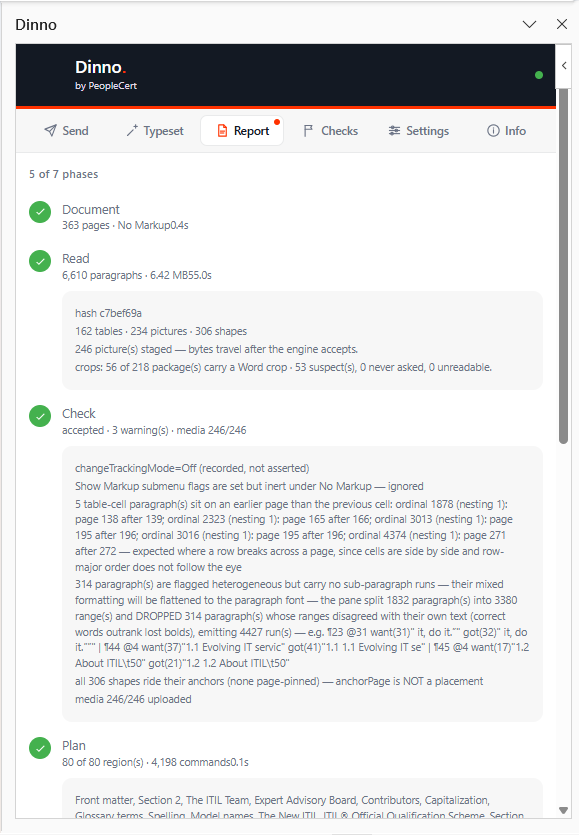
In Word: the Report tab
The seven stages are on the Report tab, not on Typeset — this is worth knowing because the pane brings Report forward by itself and people assume they lost their place. Before anything has run the tab says so plainly instead of showing an empty frame.
| Stage | What is happening | What it reports |
|---|---|---|
| Document | your document is checked for the things above | the page count and that markup is hidden, or a list of things to fix |
| Read | the book is read | the content hash, the tables/pictures/shapes counts, how the blank paragraphs were read, and how many pictures will travel |
| Check | the service accepts or refuses the reading | accepted, with any warnings — then the pictures uploading, counted |
| Plan | the book is divided into regions and pages are budgeted | the regions found and the predicted output pages against the Word pages |
| Deliver | it is handed to InDesign | the permission card appears in InDesign |
| Typeset | the pages are laid out | the run's own beat, then the per-region page attribution |
| Result | the outcome comes back to Word | what was placed, how many regions, and anything the run could not do |
A stage that never ran says "not attempted" rather than looking clean. That distinction is the whole point of the list.

Two settings that change how a run behaves
Both are under Settings → Transfer, both default to On, and both are worth knowing before they surprise you.
Pairing: when the engine asks whose device this is
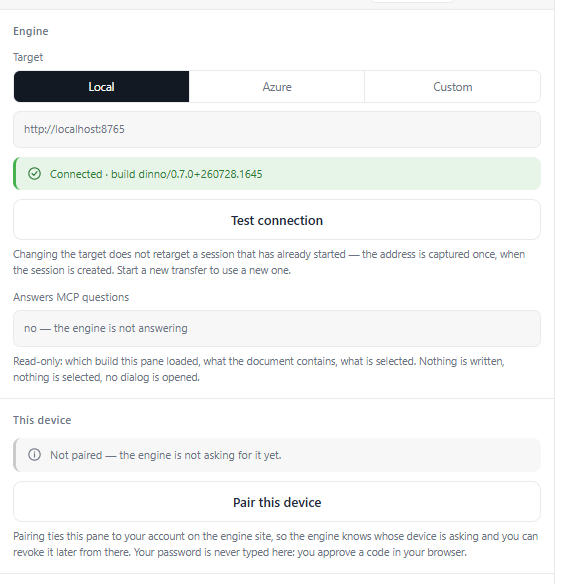
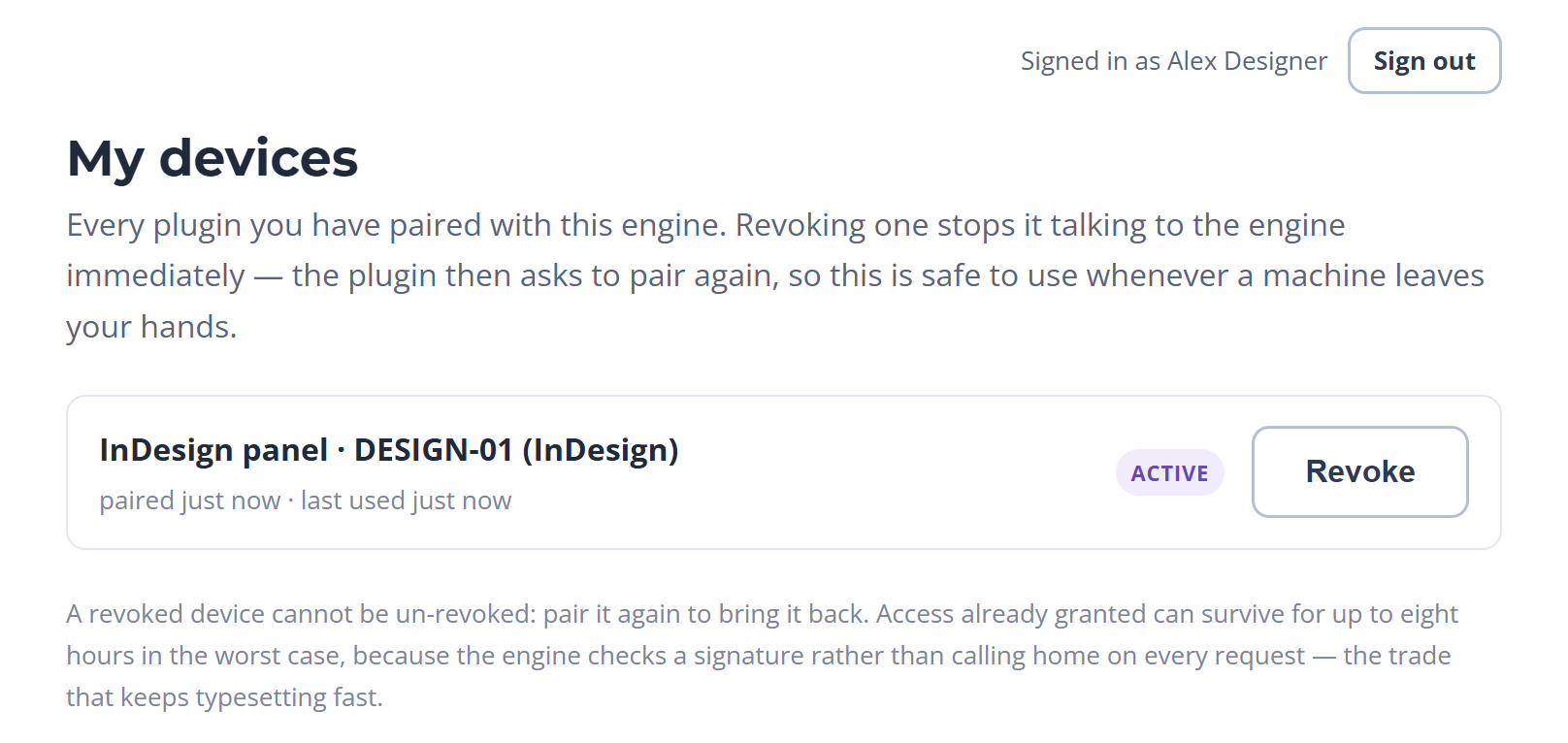
On the engine you run on your own machine, nothing ever asks you to pair — the pane, the panel and the service are all on one desk and the service takes every caller at its word. A deployed engine cannot do that: it answers several people, so before it does work for a plugin it has to know whose plugin it is. That is all pairing is. It happens once per plugin per machine, it takes about twenty seconds, and it is the only moment in this product where a browser window is part of the job.
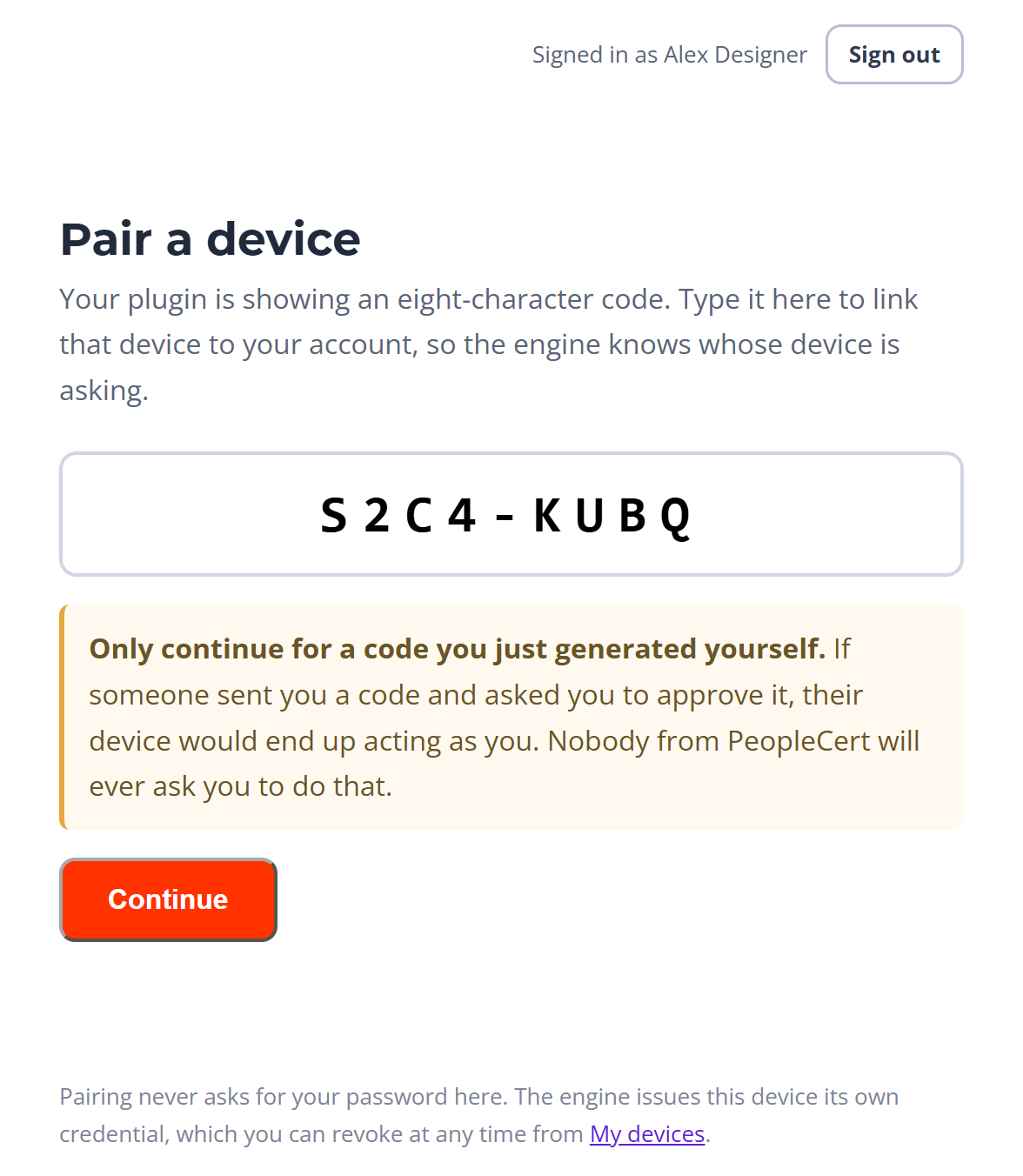
What the plugin shows you is a code. What you do with it happens on the engine's own web page, in your browser, where you are signed in — and that separation is the point. Your password is never typed into the pane or the panel. The plugin never sees it and could not use it if it did; what the plugin ends up holding is a credential the engine minted for that one device, which you can take away again at any time.
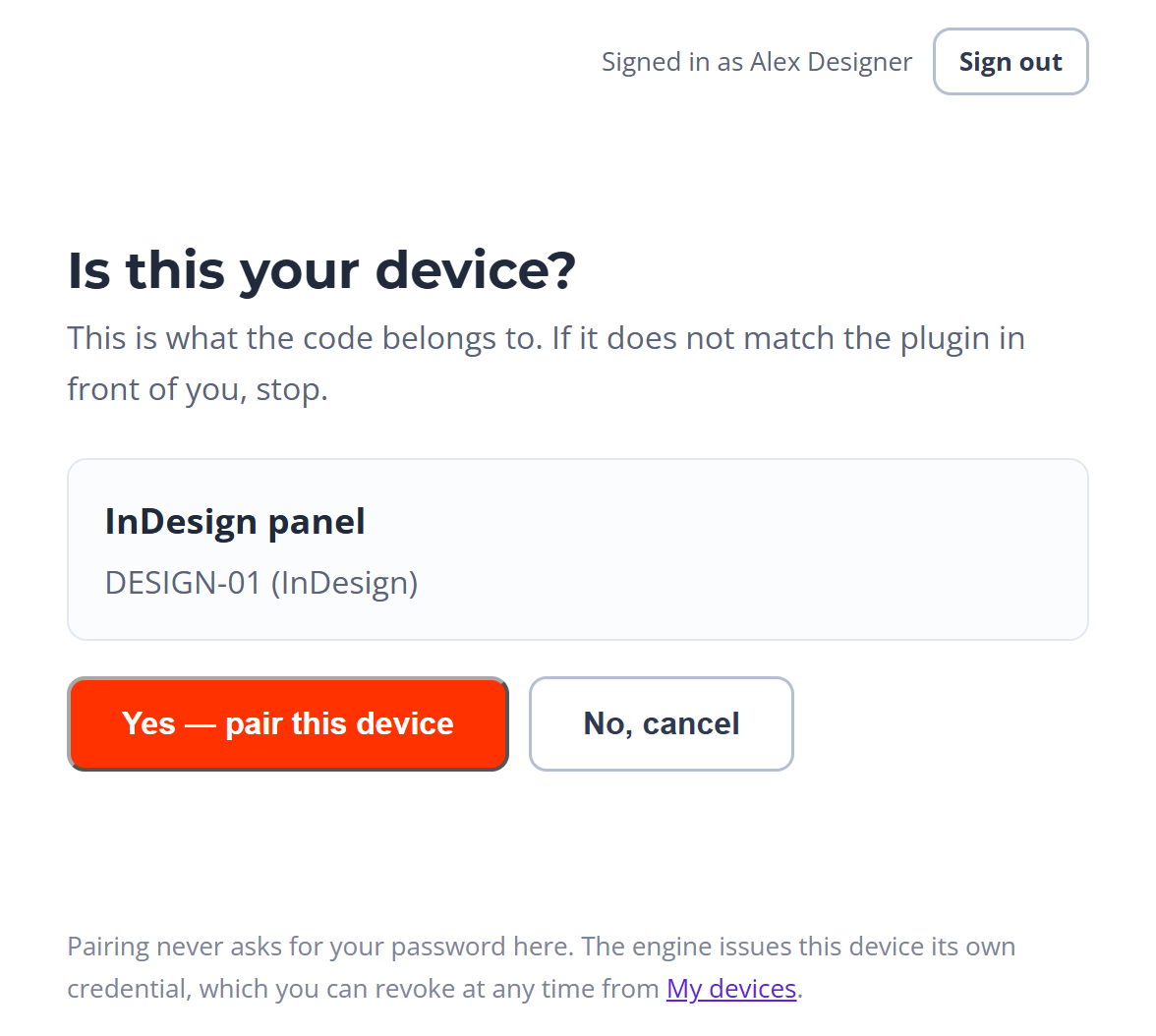
After Yes, the page says Paired and the plugin picks it up on its own within a few seconds — there is nothing to copy back. From then on every call the plugin makes to the engine carries its own credential, and no further browser round trip is needed: the engine checks a signature rather than calling home, which is what keeps a two-hundred-page run fast.
What this section does not yet cover
- A deployed engine can be configured not to insist. There are three settings — off, warn and require — and the rollout deliberately runs in warn for a period, where an unpaired plugin is still served and the engine only records it. Pairing during that window is real and worth doing; enforcement is a later, separate flip.
- Tokens survive a restart only if the deployment says so. An engine started without a configured signing key generates one at boot and says so in its own health line, and every paired device is silently unpaired the next time the service restarts. This is a deployment setting, not something a designer can see from the pane.
- Sign-in is provider-dependent. The engine can host its own directory — invitation, enrolment, sign-in — or defer to the corporate one. Which of the two you meet is decided when the engine is deployed, and only the first screen differs; everything above is the same either way.
Sending one thing instead of a whole book
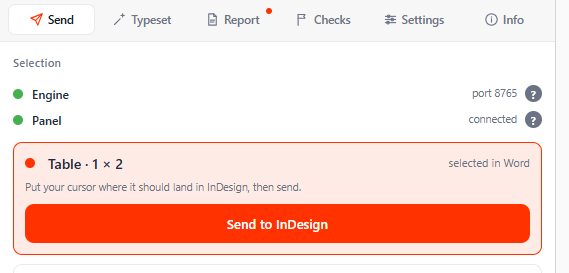
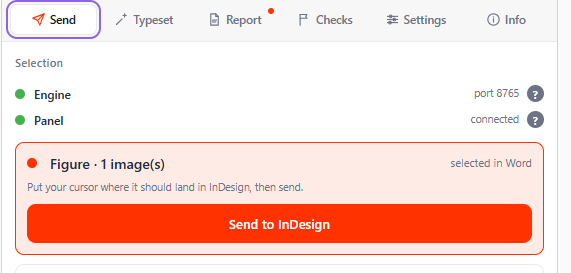
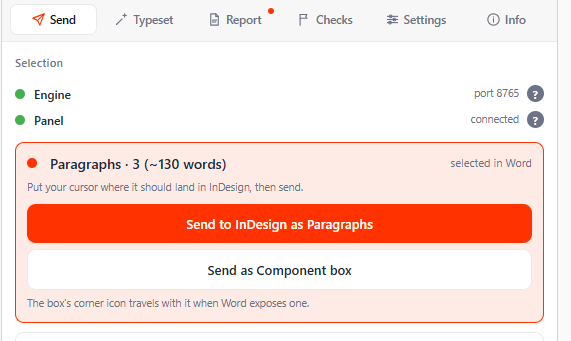
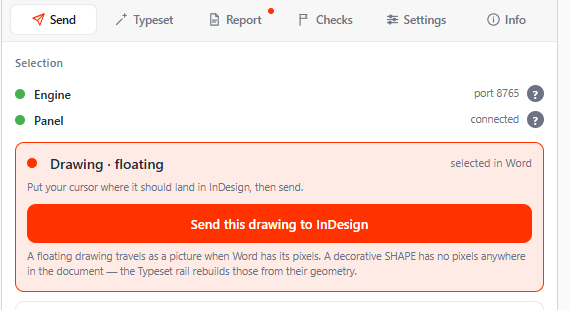
The book run is not the only way in, and the other way is the one people reach for daily. Select something in Word, and the Send tab will place just that at the designer's cursor in InDesign — no plan, no permission card, no page budget.
What it recognises today: a table, a figure, a run of paragraphs, and a floating drawing. When nothing is selected, a row of chips states plainly which kinds are live and which are still to come. Select something and the card lights up with what it found as its heading — and it is a different card for each kind, with its own buttons. The one line they all share is the one that matters: "Put your cursor where it should land in InDesign, then send." The send goes to wherever the designer's cursor is.
One at a time. Both surfaces do one operation at a time. A second press while something is running is refused rather than queued, and the refusal is written to the pane's Checks log rather than shouted at you — so if a press seems to have done nothing, that is where it went.
What the designer does next
When the run finishes you have a typeset InDesign document. It is not a finished book, and it is not meant to be. Here is the work that remains, in the order it should be done.
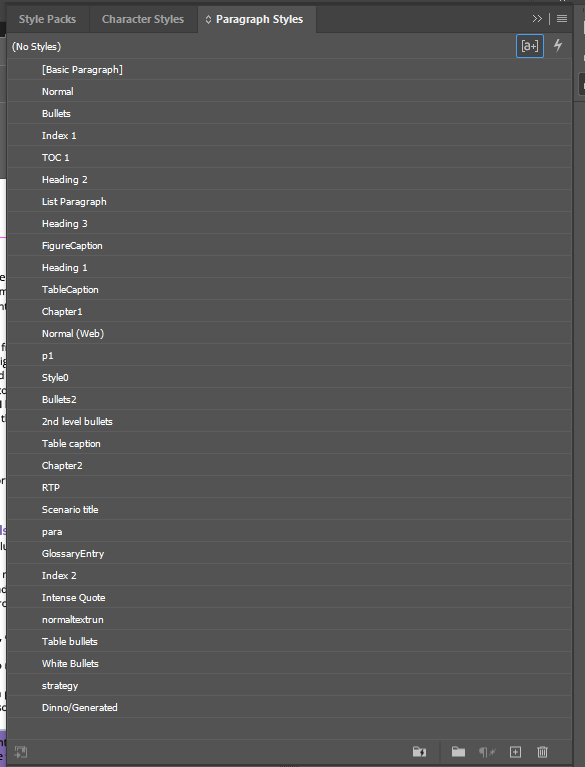
- Expect Word's style names in the Paragraph Styles panel. This is the thing most worth knowing in advance. The styles are created with the names they have in Word — so you will find
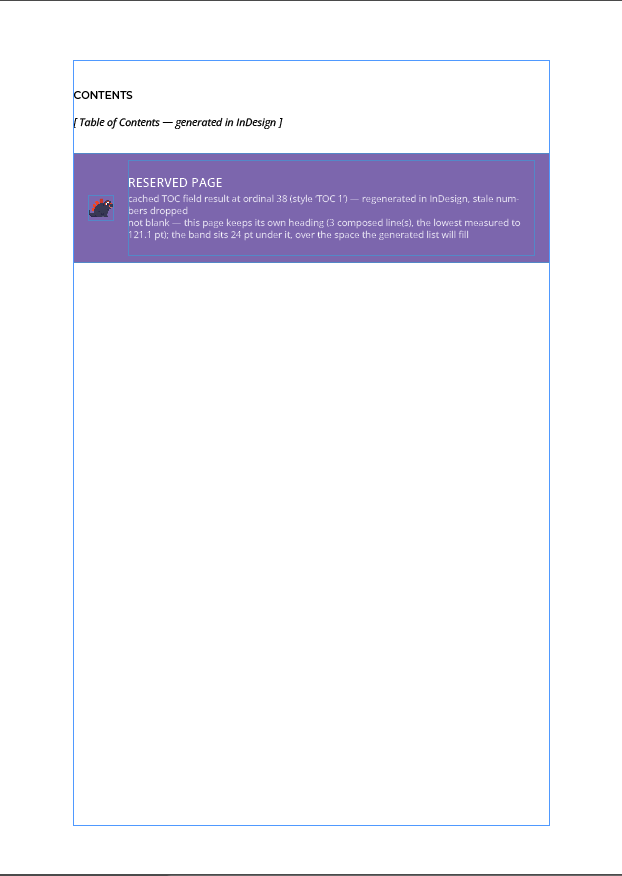
Normal,Heading 1,Bullets,FigureCaption,Chapter1, and also the author's leftovers:p1,para,Style0,normaltextrun. On the reference book, 29 styles were created. A style the document already has under exactly that name is left untouched, so if your template carries the same names, your template wins. If it does not, expect to map them once. - Generate the real lists. The table of contents, list of figures, list of tables and index exist in Word only as a stale snapshot; carrying those page numbers across would put wrong numbers in a printed book. Each was reduced to a single marker, and the real lists are generated in InDesign. Those pages carry a purple band that says so.
- Then remove the bands. Every part of a band — the panel, the logo and the text — carries the script label
DINNO_RESERVE_BAND, so the whole set can be found and deleted in one pass. Run Window → Utilities → Scripts → User →clear-reserve-bands; it reports how many it removed and writes the same line to a log beside the document. It does not ship with the panel yet — someone has to copytools/indesign/clear-reserve-bands.jsxinto your user Scripts Panel folder once before that entry appears. Nothing else moves: the bands sit outside the text and text wrap is off on every one. Find/Change cannot do this, and an earlier version of this guide said it could: its Object tab searches object format, not script labels, and it changes formatting rather than deleting objects. - Know what not to delete. The text frames are labelled
DINNO_TS:…and the text flows through them — deleting one breaks the flow. Everything the pipeline added carries a label; nothing it added is anonymous. The full list is in the reference. - Add what is not carried. Pages 1 and 2 are correctly sized but blank: the cover art is not read. Headers, footers and page numbers live on master pages — they are not carried from Word in the manual process either. Decorative shapes are not carried.
- Read the report. The run states what it could not do, with numbers. Which of those matter is below.
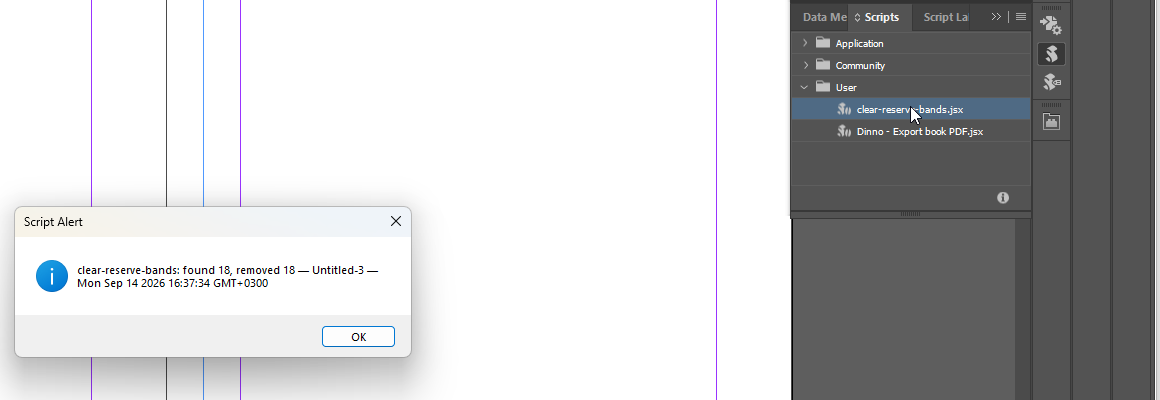
Installing the InDesign panel
A designer needs nothing from a developer. Double-clicking the signed plugin file installs it through Creative Cloud; after restarting InDesign it appears under Plugins → Dinno Executor and loads with InDesign automatically, with nothing else to keep running. IT can install it for everyone in one step. One setting matters on first use: Settings → Engine → Target selects which service the panel talks to, and the grey line underneath always states which one is live.
The Word side is not there yet, and that should be said plainly. Today the Word pane is installed by hand on a developer's machine. Central deployment through the Microsoft 365 admin centre is built and tested but not switched on — it is waiting on a decision.
Reading the report
When a run finishes, the Word pane's Report tab shows what happened. It reports both what it did and what it could not do, and the second half is the part worth reading.
The numbers that tell you the run was healthy
| Line | What good looks like | Why it matters |
|---|---|---|
| applied / deferred | 3627 applied, 0 deferred | every paragraph, table, figure and box in the plan reached a page. A number in "deferred" means something was left out |
| sections | 80 region(s), all closed | every block of the book was laid out |
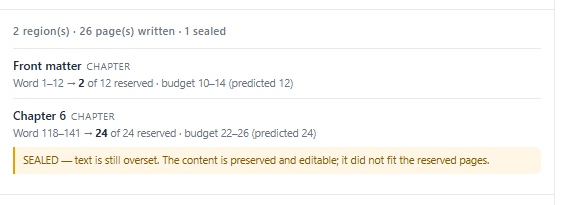
| hidden content | no section marked SEALED | a sealed section is one whose text does not fit and cannot be seen. This is the single most important line in the report |
| page breaks | match, with no LOST | the author's page breaks all survived, so chapter openers are where they should be |
| reserved-page bands | 6 drawn, 0 unplaced | every page held for a generated list is marked, so none can be mistaken for a mistake |
Not every message is a problem
The reference run reported thirty items. Nineteen of them were the same harmless one. Read them in three groups:
Housekeeping — ignore
Messages about a section reclaiming or growing pages. Each section reserves a rough number of pages, then gives back what it did not need or takes one more. There were 26 of these on the reference run and none of them means anything is wrong with the book.
Known limits — expected
Messages about shapes, pictures dropped or a placeholder without artwork. These are the things the pipeline does not carry yet, listed in Honest limits. They are reported every run on purpose, so nobody has to remember them.
Worth acting on
Anything about content that cannot be shown (a sealed section, an overset table cell), anything that could not be drawn, and anything withdrawn — a value the pipeline deliberately did not apply because your own template already decides it. These are few and each names the page.
A refusal is a result, and it is reported
The most important habit of this pipeline is that it never presents something it could not do as quiet success. Three real examples from the record:
- A full-page background was drawn, but the panel could not prove it was behind everything else. It removed the rectangle and reported the page as unpainted. An opaque page-sized rectangle in front of the text would have hidden the whole page.
- Four of six reserved pages were refused their band, each proving that the page was not actually empty. An opaque band would have covered a heading.
- The colour reader does not guess. A gradient, a pattern or an unknown theme colour is reported as unknown, with the reason, rather than approximated.
So a report with items in it is not a failed run. A report with nothing in it would be the thing to distrust.
If something looks wrong
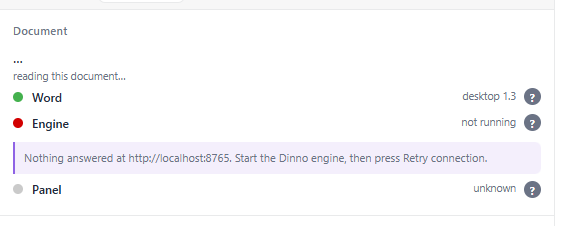
| What you see | What it means | What to do |
|---|---|---|
| The pane lists things to fix before it will read | Word is in a view or state that changes where pages break | Each item names the exact menu path that fixes it — most often Review → Tracking → Display for Review → No Markup. Then press the re-check link |
| "No InDesign panel to deliver to" | the panel is not open, or it is not yours | Open the Dinno panel in InDesign and press the send button again. The reading is not lost — re-sending costs one step, not another two minutes |
| The pane says the service is not running | nothing answered | Press Retry connection. If it persists, the service needs starting — that is an IT task |
| The pane says the service is too old | the two sides are on different versions | Report it. It is almost always a service left running from before an update |
| The permission card never appeared | either it is still working, or the panel is pointed at a different service | Give it two minutes; then check Settings → Engine → Target in the panel and read the grey line underneath, which always states which service is live |
| The card appeared and then vanished | ten minutes passed, so the transfer was abandoned | Start again from Word. Nothing was written |
| Wrong document received the pages | more than one document was open in InDesign | Undo, close every document except the target, and run it again. This is why the checklist above asks for one open document |
| The panel appears frozen mid-run | InDesign is busy; the mouse may show a wait cursor while pages are still being drawn | Let it finish — up to six minutes on a full book. If it truly stops, report it before closing InDesign: closing it destroys the evidence needed to explain it |
| Styles have unfamiliar names | styles are created with the names they have in Word | Expected. Map them to your template once, or give the template those names so it wins |
| Pages 1 and 2 are empty | the cover art is not read from Word | Expected, and listed in the limits. Place the cover as usual |
Part 3
Reference for the designer
Everything added carries a label
In InDesign a script label is a piece of text attached to an object. It is invisible on the page, it survives saving and reopening, and you read it in Window → Utilities → Script Label. Nothing this pipeline adds is anonymous — every frame it creates carries a handle, so you can always tell what came from Word and what came from you.
Two ways to use them: click an object and read its label to identify it, or run a script that finds by label to act on a whole set at once. Not Edit → Find/Change — its Object tab searches object format, not script labels, and it changes formatting rather than deleting objects.
| Label | What carries it | What to do with it |
|---|---|---|
DINNO_RESERVE_BAND | all three parts of a purple reserved-page band: the panel, the logo and the text | Remove these once the real lists are generated. The clear-reserve-bands script clears every band in the book in one pass — but it does not ship with the panel: someone has to copy tools/indesign/clear-reserve-bands.jsx into your user Scripts Panel folder once before it appears in Window → Utilities → Scripts. Not Find/Change: its Object tab searches object format, not script labels |
DINNO_PAGE_BOX | a full-page background, like the dedication page's lavender | Remove the set to drop every background, or select one and change its swatch. It sits on the backmost layer, behind everything |
DINNO_TS:… | every text frame the pages flow through | Do not delete these. The text flows from one to the next; removing one breaks the chain. Selecting everything whose label starts this way selects exactly what the pipeline built |
fig:… | a placed picture's frame | identifies which part of the source it came from |
figres:… | a placeholder whose artwork never arrived | invisible on the page; artwork that arrives later lands here |
DINNO_TS_DOC | the document itself | marks this document as the one that received the transfer. Leave it alone until the file is saved |
The band always looks the same so it is recognised on sight: a purple panel in the book's own accent colour, white text, the fixed title RESERVED PAGE, and beneath it the reason that page is empty — taken from the run's own record, never invented.
Glossary
| Term | Meaning |
|---|---|
| Reading (the harvest) | Everything read from the open Word document: text, styles, tables, boxes, pictures, drawings, page geometry, line spacing rules and theme colours. It is read from Word itself, not from the file, because only a running Word knows where its pages break |
| The plan | What the service works out before anything is drawn: how the book divides into sections and how many pages each will need. It can be inspected before you give permission, and planning writes nothing |
| Region / section | One block of the book — a chapter, or the front matter. Each is laid out as its own flow with its own page budget |
| Reserved page | A page held for content that will be generated in InDesign — contents, list of figures, index. Left deliberately empty and marked with a band that says why |
| Sealed section | A section that closed with text that does not fit and cannot be seen. The most serious thing a report can say. Zero on the reference book |
| Withdrawn | A value the pipeline chose not to apply because your own template already decides it — a size or a typeface on a style the document already owned |
Where the numbers in this document come from
Every figure here was measured on a complete run of the full ITIL Experience v5.1 book on 7 September 2026, not estimated. Where two runs of the identical book disagreed — the layout time, and the number of housekeeping messages — both figures are given rather than the flattering one.