v1.0.0 InDesign panel 1.0.0 · this build What changed
Before you say yes

Your account, and the devices you let it speak for

An account here does exactly one job — it lets the engine say whose device is asking. Sign in now sits in the top bar of every page, and the pairing page asks for it before it shows you anything at all. The screens below are photographed off a running engine.

Whether you need an account at all

An account exists here for one reason: so the engine can tell whose device is asking. A service that only ever answers you has nothing to ask about, and never does.

The default asks you for nothing

Each Office pane carries a Settings card of the same shape — which engine this pane talks to, and whether this device is paired to it.

With DINNO_AUTH_MODE unset the gate runs off, every route is open, and that card never asks you for anything.

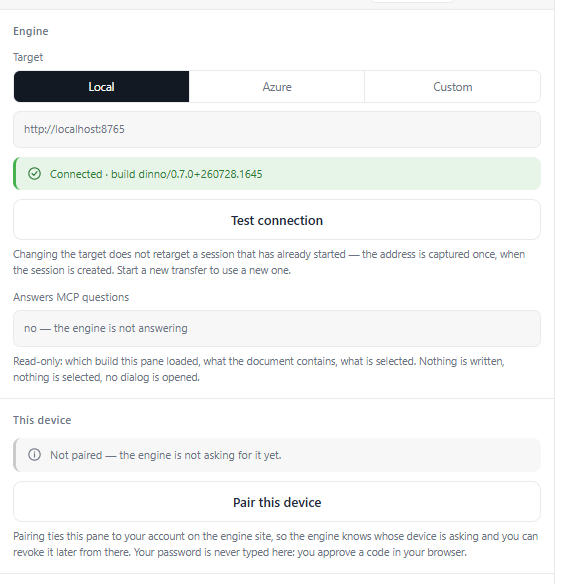
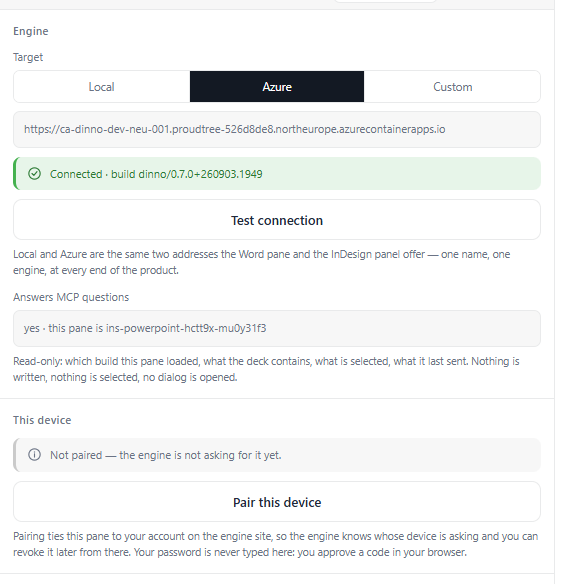
The PowerPoint pane's Settings tab: the engine it talks to, with the pairing card beneath it
The PowerPoint pane's Settings: the engine it talks to, above the pairing card. The Word pane's card has the same shape.

The same engine, in three places

On your own desk

Nothing asks you to sign in, and nothing asks you to pair. The pane, the panel and the service are all on one machine, so the service takes every caller at its word.

A deployed engine

It answers several people. Before it does work for a plugin it has to know whose plugin that is, and that is the whole job of an account here.

What it is not

Not a licence, not a profile, not a settings store. It is a name a device can be attributed to — and it is separate from your Windows account.

An engine with no sign-in at all is a real deployment too. Until a provider is configured, pairing works from the machine running the engine itself — and only if that engine was started with DINNO_PAIR_DEV_USER set. That is a developer bypass, fenced five ways: the variable, a loopback caller, a process with no site sign-in, no reverse proxy in front, and enforcement not yet on. It cannot function in a deployment.

Sign in moved into the top bar

It is on every page now, top right beside the engine status — and it appears only when the engine actually has a provider.

Sign-in used to live only on /pair/ — which meant the one control you need before you can pair anything was reachable only from the page that refuses to work without it. It is now in the chrome of every page.

The slot is rendered from /pair/me, never from the build. An engine deployed with no provider shows nothing there, because a Sign in button that answers 501 is worse than no button.

The site's top navigation showing Signed in as a named person, with a Sign out button beside the download button
The nav with a name in it, and a Sign out beside the download button.

And /pair/ asks before it shows you a form

It used to show the code form first, to everybody, so the refusal arrived only after the code had been read off another screen and typed in. The gate comes first now: sign in, and you land straight back here.

The form below it is hidden in the markup, not merely by script, so a page opened with JavaScript broken shows the explanation rather than a form that cannot submit.

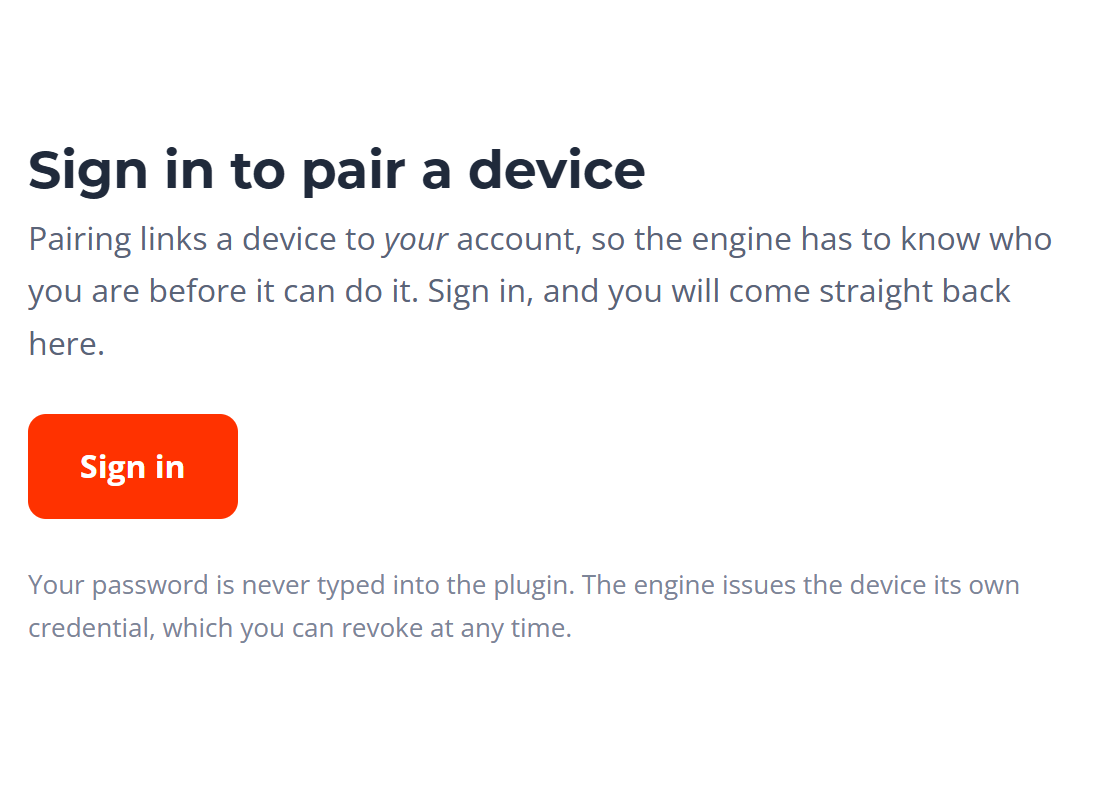
The pairing page refusing to show its code form to a signed-out visitor, offering a Sign in button instead
Sign in to pair a device — and underneath it, the line that your password is never typed into the plugin.

Three deployments, and one thing that can go wrong

One door — /pair/signin — and a gate in front of it that reads /pair/me rather than guessing.

Signed inStraight through to the code form. Approving a code binds a device to you, so the engine has to know who you are before it can offer the form at all.
Not signed in, a provider existsA Sign in button, which returns you to the page you were reading.
No provider configuredAn explanation and no button. /pair/signin would answer 501 and one line of plain text — site sign-in is not configured on this engine — so the page reads that ahead of time, and says instead that until a provider is set up, pairing works only from the machine running the engine.
The engine did not answerSays exactly that, and offers Try again. Telling someone their deployment has no sign-in when the service is simply down sends them to fix the wrong thing.

Whose password it is

Not your Windows one — not while the engine is its own provider.

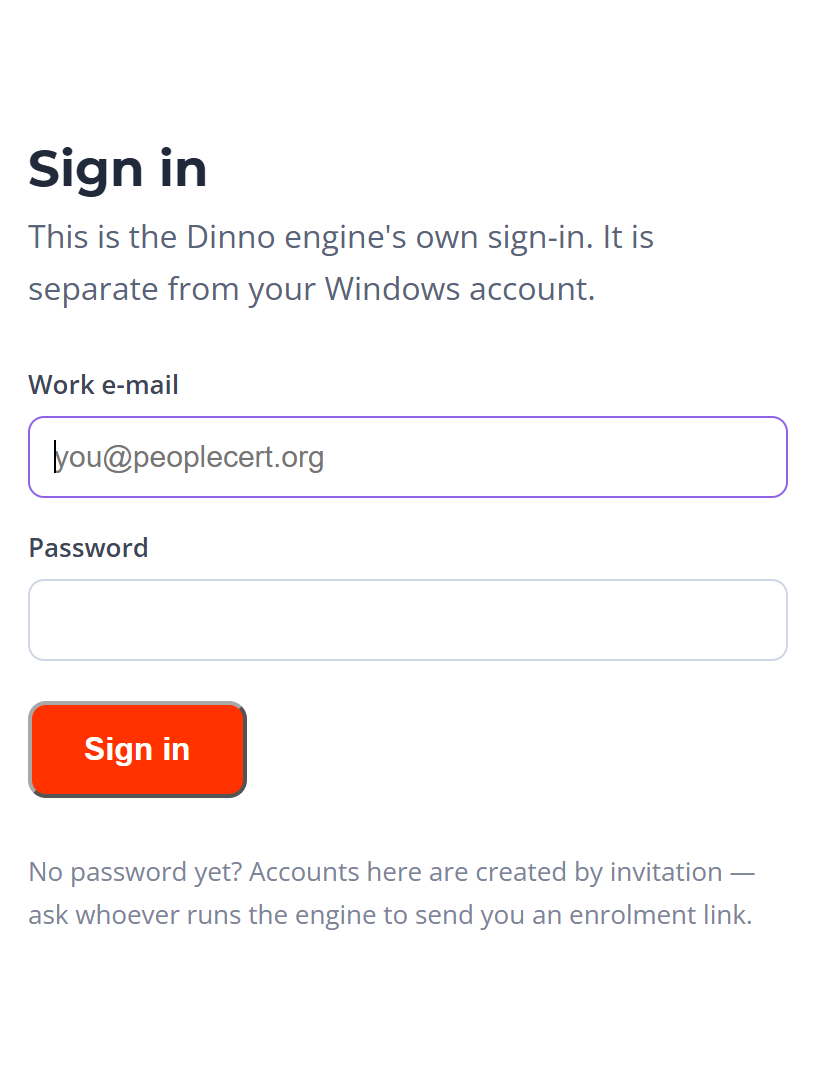
When the engine is its own provider you land on /idp/ — work e-mail, password, and back to the page you came from. The session lasts ten hours and slides while you use it, so an ordinary working day is one sign-in. Behind an external provider it is the usual redirect out and back, and the site session is eight hours instead.

It is separate from your Windows account, and the page says so in its own first line. Unless the engine has been pointed at the company directory, the password you set here is a Dinno password and nothing else. Signing in is always a navigation you chose, never a redirect fired out of a background request, so nobody is bounced away mid-call.

The engine's own sign-in page, asking for a work e-mail and a password
The engine's own sign-in page. Work e-mail and password, under a first line that says this is not your Windows account.
A refused sign-in tells you very little, on purpose. The log distinguishes an unknown address from a wrong password; the answer does not, because naming the difference hands a stranger a list of who exists. The one exception is lockout: eight failed attempts within fifteen minutes locks that address for fifteen minutes, and it says so, because waiting is then the only useful action.

Pairing a device — what the account is actually for

Once per plugin per machine, about twenty seconds, and the only moment in this product where a browser window is part of the job. The pages are real and live here: Pair a device and My devices.

Step 1 — the plugin asks

Settings → This device → Pair this device. The engine answers with an eight-character code and a countdown. Its alphabet contains no I, O, 0 or 1, so there is nothing to misread.

The code lives ten minutes and works once.

The Word pane's Settings: which engine it talks to, with the pairing card beneath it
The Word pane's Settings: which engine it talks to, and the pairing card under it.

Step 2 — you approve it in a browser

On /pair/, where you are signed in. Normally you type nothing: the plugin opens the page with the code in the URL fragment, which never leaves the browser — not to the engine, not to a log, not to a Referer header.

Typing it stays possible when the browser is on a different machine from the plugin.

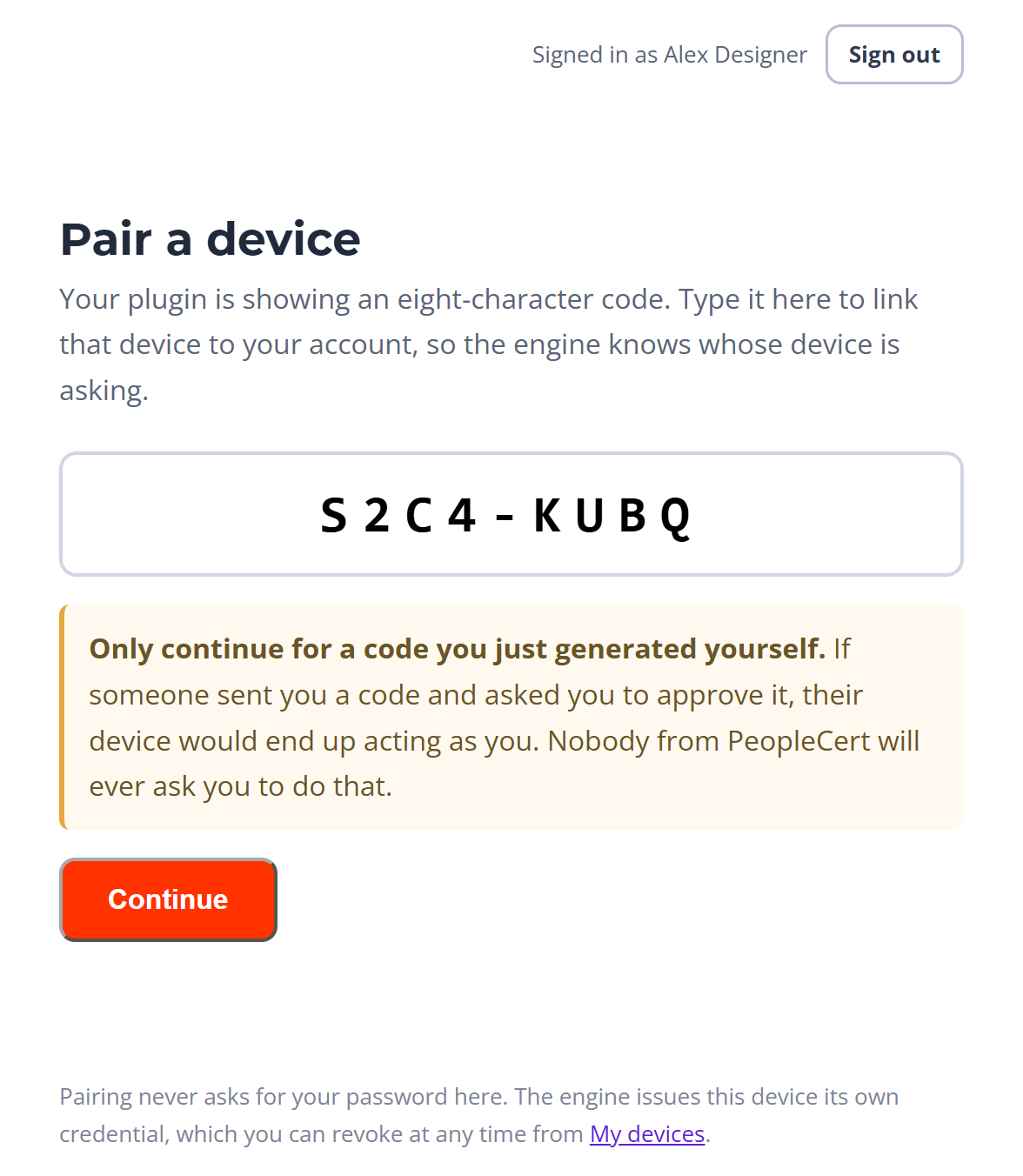
The approval page with an eight-character pairing code filled in, above the anti-phishing warning
A code filled in — and the warning sitting above the button rather than arriving after it.

Step 3 — the page says what is asking

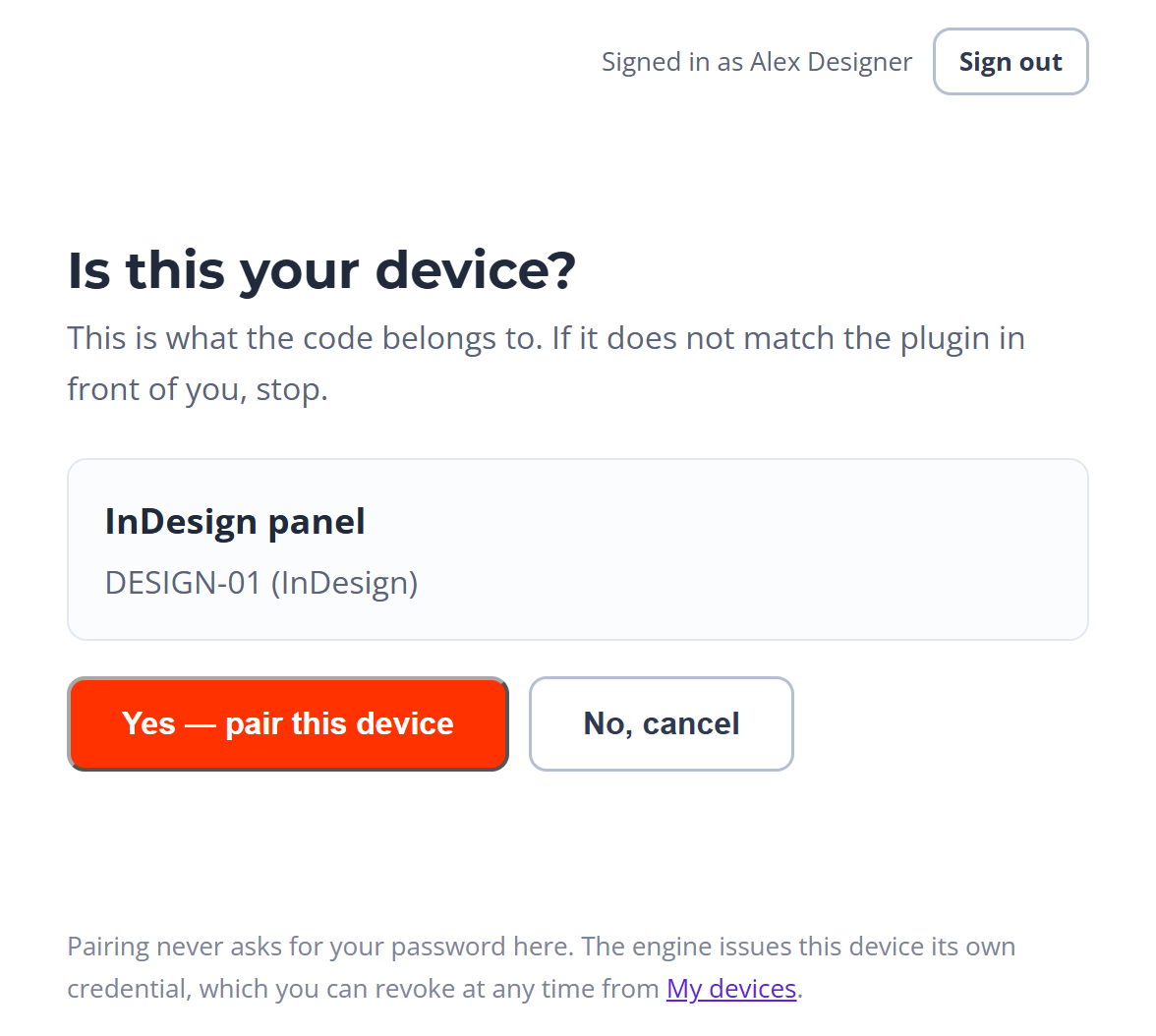
Not “approve this code”, but the plugin type and the device's own label, read back out of the engine's store rather than out of the page in front of you.

If those two lines do not match the thing on your desk, the answer is No, cancel.

The engine naming which plugin and which machine are asking to be paired, with approve and cancel
Which plugin, and which machine. Two lines you check against the screen beside you.

Step 4 — the engine issues a credential

To that one device, and the plugin picks it up within a few seconds — there is nothing to copy back. Your password is never typed into the pane or the panel. The plugin never sees it and could not use it if it did.

8
characters in a code
10
minutes before it expires
8
hours an access token lasts
30
days a refresh token lasts
Approve only a code you generated yourself, seconds ago. A code approved here binds someone else's device to your account, so a code that arrived in a message — from a colleague, from support, from anyone — is a code to refuse. Nobody from PeopleCert will ever ask you to approve one. The engine also limits pairing requests to ten per ten minutes from one address.

How often any of this asks you for anything

Pairing, once. After that the plugin renews on its own.

Access tokenEight hours.
Refresh tokenThirty days, rotated on every use. A plugin left untouched for longer than thirty days pairs again.
One pairing per plugin, per machineTokens are kept per engine too, so the Local and Azure presets are two different engines and two separate pairings.
The site session is separateTen hours when the engine is its own provider, eight when the site trusts an external one.

Taking a device away

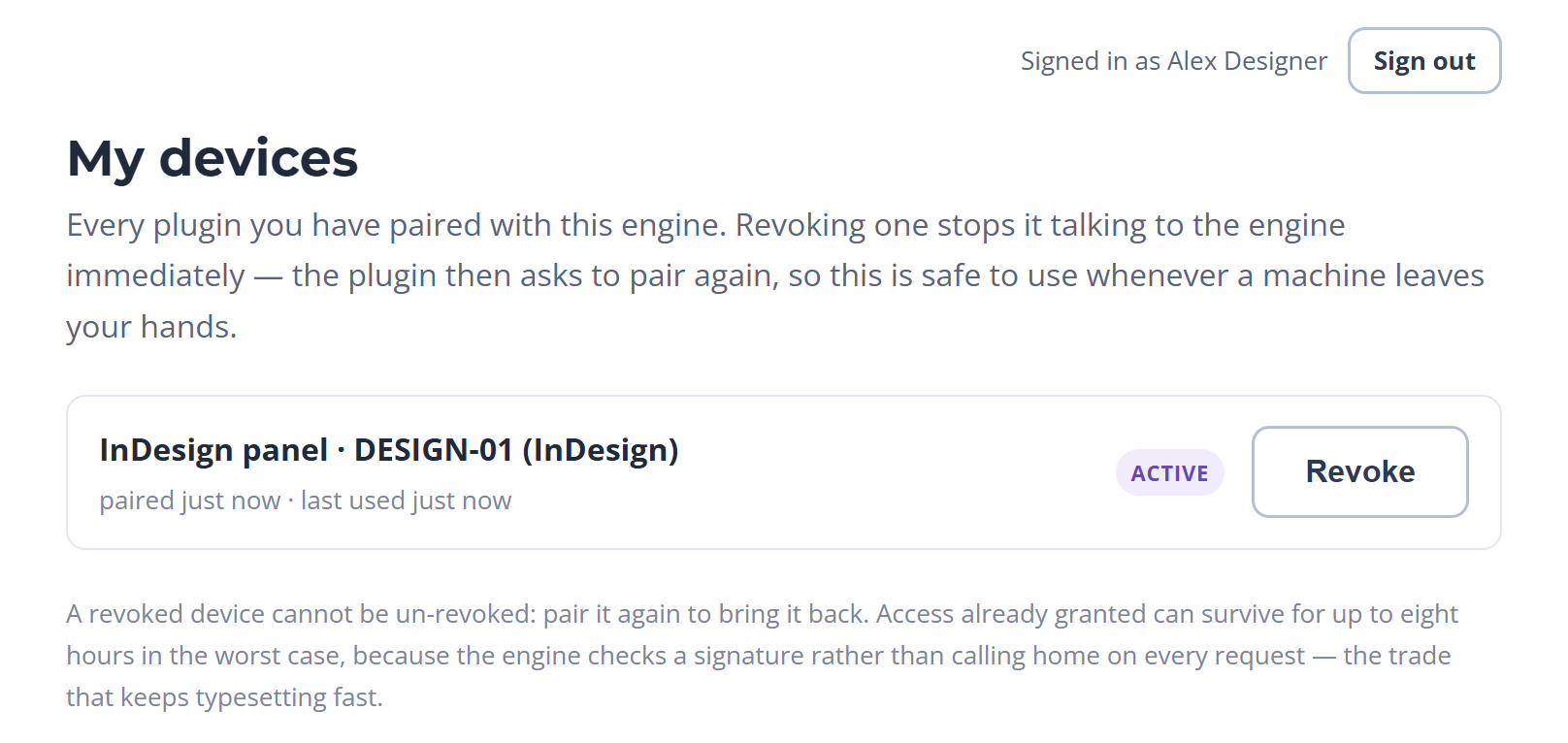
My devices lists every plugin you have paired with this engine — what kind it is, the label it gave itself, when it was paired and when it was last seen — and revokes any one of them in a single press.

The paired-device list: one row per plugin, each row carrying a Revoke button
One row per paired plugin, each with its own Revoke. You see and revoke only your own devices.

What it does

Marks the pairing revoked and kills the device's current refresh token outright, so it cannot renew. It is not reversible and does not need to be — the plugin simply asks to pair again. Do it when a laptop is handed on, reimaged or lost.

When it takes effect

Under require, at once. The gate reads the pairing out of the store on every protected call, so the device is refused on its next call rather than keeping the hours it was already given. A pairing revoked anywhere stays revoked: when two instances of the engine write at once, the merge always errs that way.

Under warn, revoking does not reach the device. Nothing is refused at request time at all: the gate writes the revoked pairing to the log and serves the call anyway, and because a plugin only refreshes after a 401, it never even asks to renew. A device revoked while the engine is in warn keeps working until the mode changes. That is the measuring stage behaving exactly as designed — but it means warn is not a security control.

The three modes, exactly

One value on the engine — DINNO_AUTH_MODE — decides whether any of this is enforced. It is set where the engine is deployed. Nothing in your plugin changes it.

off a call the gate steps aside no token read served warn a call validated nothing stops served written to the log — “would have been rejected” require a call validated one way or the other served 401, and a machine-readable reason
The middle lane is why a revoke under warn never reaches the device: the check runs, the answer is written down, and the call is served regardless.

What each mode actually does

offThe gate steps aside before it looks at anything. No token is needed, nothing is refused, no pairing is ever requested. This is what a local engine runs, and what the panels in the field run today.
warnEvery request is validated, and the ones that would have been rejected are written to the log. Nothing is refused. That log, not a date, is what says when require is safe — and pairing during this window is real and worth doing.
requireA call with no token, an expired one, or one belonging to a revoked pairing gets 401 and a machine-readable reason, which the plugins turn into their re-pair flow. The panel stops being quiet and says the engine now requires this device to be paired.
anything elseTreated as off and logged as an error at startup. A typo must not lock the field out, but it must not read as enforcement either, so /healthz reports the effective mode and never what the environment literally said.
Under require the site itself stays open. The gate protects by default and opens a named list: the site pages, /healthz, the downloads, /pair, /idp, /mcp, the two Office task panes, and the guides' figures and this site's own. It has to be that way — a sign-in page behind a sign-in is a locked door with the key inside.

How an account gets created

The engine can host its own directory, and there is no sign-up form in it. Every account starts as an invitation from someone already in. When the engine is its own provider, the user store is empty and a bootstrap address is configured, it creates one invitation for that address and writes it to a file beside the store.

Never to the log: an enrolment code is a credential, and logs are read by more people and kept for longer than anyone intends. Open it once, then delete the file.

# beside the user store, written once and never to the log
<store path>.bootstrap-invite.txt
 
# what is inside it: one link, single-use
/idp/#code=…    # expires after seven days

The rules of an invitation

The link/idp/#code=… — single-use, and it expires after seven days. The code sits after the #, so the browser never sends it to the engine and it cannot land in a request log; the page removes it from the address bar as soon as it has read it. Older links in the ?code= form still work.
A second invitation for the same personCancels the first, so a stale link in an old message is not still a way in.
EnrolmentThe link opens the engine's sign-in page in enrolment mode. It names who the invitation is for, and asks for a display name and a password. Enrolling signs you in straight away.
At least twelve charactersLength is the only rule, and nothing else is. Composition rules push people towards a short puzzle and a sticky note.
Who can inviteAny active enrolled person can invite a new address. Invitations cannot change an existing account.
Invitations create new accounts only. They cannot reset an existing password or re-enable a disabled account. There is no self-service password reset on this page. Contact the engine operator for account recovery; ordinary users cannot issue recovery links for existing accounts.
When the company's own sign-in is switched on

Everything after the first screen is the same whichever way it goes.

engine

This process is the provider. The directory, the invitations, the passwords and the sign-in page are all its own. No client id and no secret are needed — the site and the provider are the same process, so there is nobody to prove anything to.

An external provider

Entra's v2.0 endpoint in practice, so its tokens carry an object id. The engine's own directory is not loaded at all. It needs an app registration to exist — a client id and a tenant — which is the part IT provisions.

engine-oidc

Built, and deliberately not the default. The engine is still the provider, but the site reaches it through a real OpenID Connect round trip instead of reading its cookie. The proven cookie path stays in use until this one has earned the swap.

Which one answers, and what sets it

DINNO_SITE_AUTHORITYChooses the engine's own provider — engine or engine-oidc.
Left unsetThe site trusts an external provider when DINNO_SITE_CLIENT_ID and DINNO_ENTRA_TENANT_ID are both set, and has no sign-in at all when they are not.
/healthzNames which one is answering — engine, engine-oidc, external or none.
What a designer noticesThe first screen, and nothing else. The code, the approval page, the device list and revoke are identical under either provider.
When an external sign-in does not complete, the pairing page says why in words rather than failing — including the common one, that this tenant does not let people consent for themselves and an administrator has to approve the application once.

The questions that actually get asked

Is this my PeopleCert password?Not while the engine is its own provider — the sign-in page says so in its first line. It becomes the company sign-in the day the engine is given an app registration, a client id and a tenant, and DINNO_SITE_AUTHORITY is not pointed at the engine's own provider. Then the password is theirs and the engine never sees one at all.
Can I sign myself up?No. There is no sign-up form. Every account begins as an invitation, and the first one is written to a file beside the user store when the engine starts with an empty directory.
The engine restarted and my device was unpairedThat is the signing key. An engine started without a configured one generates a key at boot, so every token it ever issued dies on restart. /healthz reports which case it is in. It is a deployment setting, not something a designer changes from the panel.

What is not built here

Each of these is a real edge of the account work today, named rather than left to be discovered.

  • There is no page for sending an invitation yet. POST /idp/invite exists — the person's work e-mail in, the link back once, to the caller, and never logged — but nothing on this site puts a button in front of it. Inviting someone is an API call today.
  • There is no admin flag, and no list of who invited whom. The flag is deliberate: for a handful of designers it would need an admin screen, a way to grant it, and a rule for what happens when the last admin leaves. The engine logs who issued each invitation, but the invitation does not carry the inviter, so there is nothing to read back.
  • My devices has not caught up with the gate. Its signed-out message still says site sign-in is being provisioned, whatever the engine was deployed with. /pair/ reads /pair/me first; that page does not yet.
  • The external provider is not provisioned. It needs an app registration — a client id and a tenant — and the source is explicit that it is still to be done.
  • warn is not a security control. A device revoked while the engine is in warn keeps working until the mode changes.
  • The local pairing path is a developer bypass. It needs DINNO_PAIR_DEV_USER, a loopback caller, a process with no site sign-in, no reverse proxy in front, and enforcement not yet on. It cannot function in a deployment.

The two pages you actually need

One to link a plugin to your account when the engine asks whose it is, and one to take it away again.

Pair a device My devices