PeopleCert · Learner Workbook & Trainer Guide · Dinno 0.7.0 · 8 September 2026
From one deck to two books: the Learner Workbook and the Trainer Guide
A trainer's PowerPoint deck is the manuscript for two printed products at once: the Learner Workbook the participants hold, and the Trainer Guide the trainer works from. This guide says what producing them costs today, what Dinno changes, and — plainly — how far that has got. The reference deck is the ITIL 4 Foundation trainer deck: 295 slides, 277 of them carrying speaker notes.
Summary
The two books are made from the deck's speaker notes, not from its slides. The notes carry 2.4 times more text than the slide canvas, and one notes field holds two audiences at once: text set in regular weight is for the learner, text set in bold is for the trainer. The slide itself appears in both books as a picture.
Today that split is performed by three macros, a folder of hand-exported pictures and three scripts, each run by hand, each asking questions in dialog boxes, and none of them able to say when something went wrong. Nine ways they fail without an error message are on record.
What Dinno does instead: the pane in PowerPoint renders every slide with PowerPoint's own renderer, reads the deck once, and asks the service for one of the two books. The result arrives in the designer's InDesign panel as a parked plan that does nothing until the designer presses Apply — new document. The two books are two readings of the same deck, so the pieces the old process lost between them cannot go missing.
What this guide does not have, and says so. The Official Book guide is built on a measured full-book run — pages, defects, timings. This line has no measured run on record: no timing for a deck build, a slide send or an apply exists anywhere in the project's evidence. Every number here is a count taken from the deck or from the old scripts' own code, and the guide says which. The first measured run is the next thing to do.
The process today: one deck, three hand-run passes
The designers' own macros and scripts were read line by line, so this is what they do rather than what anyone remembers them doing.
- Three macros in PowerPoint. The learner macro walks every slide and appends a three-column table to whichever Word document happens to be open — slide number, the notes with the bold runs removed, the slide title. The trainer macro is the same loop with the test inverted: bold runs only. A third macro finds quiz slides by looking for the literal word "Question" followed by a digit, and writes a five-column table of stems, options and answer keys.
- Every slide exported to a picture, by hand. The designer exports the whole deck to numbered PNG files into a folder next to the Word document. That is the entire fidelity strategy: the slide canvas, diagrams included, is photographed rather than rebuilt. The slide's identity from here on is the integer in the file name.
- Three scripts in InDesign, each with its own prompts. The Learner Workbook script asks for two lists of slide numbers to be typed in — which slides to discard, which to mark as non-core — then builds an A4 facing-pages book, two slides per page. The Trainer Guide script needs the cursor placed in a cell of an existing table, then asks for the Word file, the picture folder and a 151-number non-core list pasted in; it runs on macOS only. The quiz script needs a text frame selected and a template that already carries four named styles, or it stops.
The same fact, computed three times from three proxies
Which audience a sentence belongs to is derived from its font weight. Which slide a picture belongs to is derived from a number in a file name. Which slides are non-core is derived from a title pattern, a position rule and a hand-maintained list of 151 numbers. Which option is the right answer is derived from a line of notes text matched against letters assigned by where shapes sit on the canvas. None of these decisions is written down anywhere; each is re-derived, by a different piece of code, every time.
What breaks silently
All nine were confirmed against the scripts' source. None of them produces an error message; that is what makes them expensive.
| What happens | What the reader gets | |
|---|---|---|
| B1 | Quiz options are lettered by where the shapes sit on the slide; the correct answer comes from a line of notes text. The InDesign script re-detects the answer with a stricter pattern than the macro that wrote it | on a shuffled or two-column layout, a printed answer key that is wrong; on a colon-marked key, the right answer with no highlight and no warning |
| B2 | The Learner Workbook gives every slide's notes a frame of fixed height, 3.65 cm, with autosize off. When the notes overflow the first block on a page, the script moves on and leaves the frame in place | learner notes hidden in overset, invisibly. With notes running 2.4× the canvas text, this is the dominant failure, not an edge case |
| B3 | The Trainer Guide template lacks the grey swatch the script needs, so the script creates it — as RGB, despite its CMYK name | every non-core thumbnail stroke in every production run printed in the wrong colour space |
| B4 | Both notes macros test for exactly bold or exactly not-bold. A run that PowerPoint reports as mixed matches neither | text dropped from both books, and since the books are made in separate runs, nothing compares them |
| B5 | The Learner script accepts only pure-digit picture names; the Trainer script accepts any digit run. The real sample folder contains Slide287.png | the same picture folder yields different slide sets in the two books |
| B6 | The title patterns that decide what to discard or downgrade over-match: a pattern for "next" also matches "nex"; "Introduction" catches "Introduction to Service Value"; "Activity" catches "Reactivity" | content slides silently discarded, corrected by hand-typing override numbers into a prompt, every run |
| B7 | The quiz script looks for a style called Quiz - Correct answer; the production template has Quiz - correct answer. A fallback with the lowercase name is what keeps it running | a one-line cleanup of that fallback would stop every quiz run on the real template |
| B8 | A recap slide gets a grey stroke on a loose pattern, but the blank note-taking spreads after it fire only on the exact title Recap: Key learning points | a differently titled recap gets the stroke without the spreads, or the other way round |
| B9 | Learner script v3.4, Trainer v2.2, Quiz v1.3, template v5.0. The style names, swatches and measurements are repeated in each and have already drifted — the core stroke is 3 pt in one book and 2 pt in the other | every fix is applied three times, and nothing says when one copy was missed |
The pattern behind all nine: every semantic decision is re-derived downstream from a lossy proxy. The replacement's job is to compute each of them once, as data a person can review.
What replaces it
One reading, two books
The deck is read once. The learner book and the trainer book are two projections of that one reading — regular runs to one, bold runs to the other — so a sentence cannot be in neither. Italic and underline survive inside the kept channel, as they did before; line breaks inside a sentence stay with their sentence, which the macros lost into Word's cell flow.
The slide's identity is the slide, not a file name
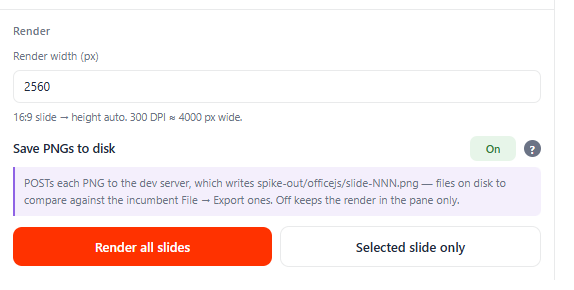
The pane renders every slide with PowerPoint's own renderer at 2,560 pixels wide — the same pixels File → Export produces — and hands them over with stable slide identities. The manual export and the file-name-integer join are gone, and with them B5.
The answer key is computed once
Which option is correct is decided once at extraction — the letter on the notes key line, resolved against the options in the order their shapes sit on the slide — and carried as data, so nothing downstream re-detects it. Where the old chain resolved an ambiguity silently, the new one escalates it — a question with no single correct option is reported, not guessed.
The template contract is data, not three scripts
Swatches, style names, geometry and stroke rules live in one versioned file, with CMYK values and case-insensitive aliases. A style the template lacks is created from a real specification and reported, instead of being created empty and silently used. The 3 pt / 2 pt disagreement is recorded as a question for the design team rather than quietly unified.
Against the macros' own contract, line-verified: seven of eight rules are matched. The one that is not — bullet marks the notes inherit from the slide master rather than carry explicitly — is a known deferral, commented in the code, and the decks tested so far do not depend on it.
Where it stands, honestly
This line is behind the Official Book line, and the guide should not read as if it were not.
| Working today | Not yet |
|---|---|
| The pane in PowerPoint: render every slide, send a selected slide to the designer's cursor, build a Learner Workbook or Trainer Guide plan and deliver it to the designer's panel | Installing the pane any way other than a developer sideload from a running local server. Central deployment is prepared and not switched on |
| The InDesign panel's Receive tab: the parked build, Apply — new document, the receipt when it lands | A measured run of the whole path on a real deck, with timings. None exists yet |
The Convert wizard can take a .pptx directly and offers Learner WB / Trainer Guide / Quiz — the only place the Quiz projection is reachable. Convert is deprecated in 0.8.0 and removed in 1.1 | That path has real slide pictures only if the same deck was rendered by the pane first; otherwise every slide is a placeholder. The pane itself offers no Quiz button |
| Pairing, engine target, diagnostics log — the same shape as the other two surfaces | The pane's Report tab is a named placeholder. There is no Stop for a build. A successful build shows no success message where it was pressed — see below for where to look |
How we know
The same rule as the Official Book guide: a number is either measured or it is not stated.
The old chain was read, not remembered
The macros (199, 195 and 484 lines) and the scripts (858, 880 and 1,384 lines) were analysed line by line, then the analysis was checked by a second pass whose job was to refute it. The nine failures each cite the line they come from. The 3.65 cm frame, the 151-number list and the 3 pt / 2 pt drift are read out of the code, not recalled.
The deck was counted
295 slides; 277 with notes; 178,177 characters of notes against a canvas that carries 2.4 times less; on 211 of the 277 slides the notes exceed the canvas. That is why a fixed-height notes frame is the dominant failure, and why "the notes are the manuscript" is a measurement rather than a slogan.
Every label in Part 2 was read out of the source
The PowerPoint pane and the InDesign panel's Convert, Mapping and Receive surfaces were inventoried from their code — every tab, button, toggle, message and log line, each located in a file — and then checked a second time against the source. Where a label was one word off, the file was corrected, not the guide.
And what is not known is written down
No run timing. No fidelity figure for the rendered slides against the old export. The estimate in the pane's own code that a build takes about ninety seconds is a code comment, not a measurement, and it is not repeated here as one.
Part 2
How to use it
This part is for the people who will run it: what to check in PowerPoint, what to press, where the result actually appears — which is not where you pressed — and what the designer does in InDesign. Installing the pane is a developer task today and is said so below rather than glossed over.
Who does what
Three pieces work together. In PowerPoint a side pane renders the slides and reads the deck. Behind it a service works out what each book should become. In InDesign the same panel that receives Word transfers receives these builds too, and asks the designer before it writes anything. You use two of them, and each has its own tabs:
The PowerPoint pane: Deck · Report · Checks · Settings · Info. The InDesign panel: Receive · Mapping · Convert · Transfer · Co-pilot · Settings · Info. A book build uses Deck in PowerPoint and Receive in InDesign. The pane's Report tab is a named placeholder and never fills — do not look there for a result.

Before you press anything
Five things the run will not fix for you.
- Finish editing the deck, and leave it open. The pane renders PowerPoint's live view: a slide re-rendered mid-edit is a slide nobody signed off. The deck must stay open until the run reports done. The pane changes nothing in the deck — its settings live in the browser storage of the pane, not in the
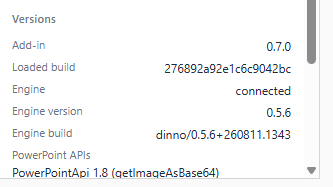
.pptx. - Check the pane can render at all. Rendering needs a Microsoft 365 PowerPoint with PowerPointApi 1.8. A perpetual or LTSC build cannot, and every render, send and build fails with the same sentence: this PowerPoint build cannot render slides (getImageAsBase64 needs PowerPointApi 1.8). The Info tab's PowerPoint APIs row is the place to look before anything else.
- Open the Dinno panel in InDesign, on the same engine. Both surfaces must point at the same Target under their own Settings — Local or Azure — and, if the engine asks for pairing, both must be paired as the same person. A build with no panel open is refused with no panel connected — open the Dinno panel in InDesign.
- Know where the result will appear: not where you pressed. A successful build shows no success message in the card you pressed. The evidence is a new row under Sent today lower on the same tab, and the build itself is waiting on the InDesign panel's Receive tab until the designer presses Apply — new document. Nothing announces its arrival there — no badge, no tab switch, no sound.
- Turn Save PNGs to disk off. It is on by default and only works on a developer's own machine. Everywhere else it fills the Checks log with one ! save slide N failed: HTTP 404 line per slide while the render itself carries on. It resets to On every time the pane loads.
Building a book
In PowerPoint: the Deck tab
The tab opens with a Deck card naming the open deck and its slide count, and below it the card that matters: Build from this deck — Renders all slides, then builds the book in your InDesign panel. Two buttons, Learner Workbook and Trainer Guide, one for each projection. Two lines under them say the two things worth knowing before pressing: Creates a NEW InDesign document in the panel — not at your cursor, and Speaker notes: bold = trainer channel (TG), regular = learner manuscript (LW).

Before it builds: which slides are core
Pressing a book button does not start the build. It opens the list the build is about to act on: every slide, what Dinno thinks it is, and the rule that decided. Three verdicts, and only one of them is a colour:
- CORE — examinable content. The slide picture gets the purple
ITIL 4stroke. - NON-CORE — supporting material. The grey
mono 2 CMYKstroke. - NOT IN BOOK — the slide is removed entirely. Assessment slides go to the Quiz book; admin titles and, for the Trainer Guide, slides with no trainer notes, are dropped.
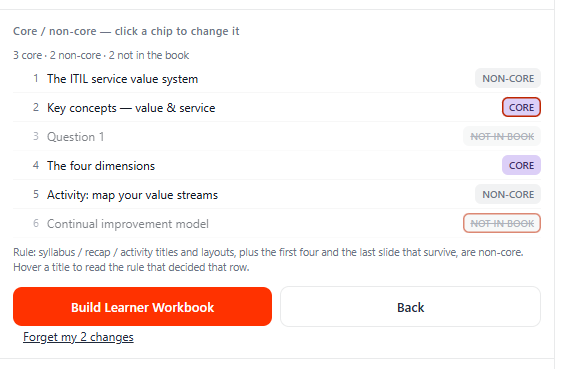
The rules are a port of the ones the old scripts used: a slide is non-core if its layout name or its title matches a pattern (syllabus, recap, activity, learning objectives), and — regardless of either — if it is one of the first four or the last of the slides that survived. That last rule is positional, so removing or keeping a slide moves it; the list re-asks the service after every change, so what you see is always what will be built.
The old chain had the same problem and solved it by hand: the production Trainer Guide run needed a file of 151 slide numbers pasted into a prompt, every time, because the patterns over-match — Activity also catches Reactivity. That list has no replacement and needs none: press the chip. Your changes ride with the build, and Forget my changes puts the rules back.
Press one. What follows, in order, is narrated by one grey line under the buttons — there is no bar and there is no Stop:
rendering…  →  rendering 12/84  →  reading the deck file…
   →  sending renders 12/84  →  uploading 1/2  →  compiling & delivering…
Every slide is rendered at 2,560 pixels wide with PowerPoint's own renderer, the deck file is read and fingerprinted, the renders and the file go up, and the service compiles the projection and hands the plan to your InDesign panel. Do not edit the deck while the line is moving.
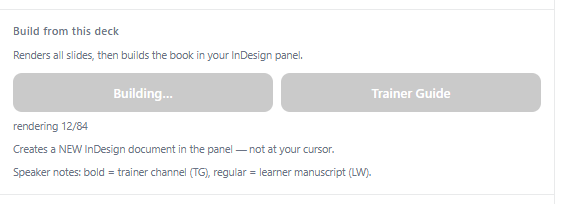
When the line disappears, look down, not up. A finished build clears the stage line and shows nothing else in that card. The receipt is a new row under Sent today further down the tab: 14:32 · Learner Workbook build — ITIL4_FND_Trainer.pptx — sent to your InDesign panel. If instead the row ends in the panel did not take the plan, or a red line has appeared under the buttons, the build did not land — see if something looks wrong. "Sent today" means this pane session, not the calendar day: it survives closing the pane and not restarting PowerPoint.

In InDesign: the Receive tab
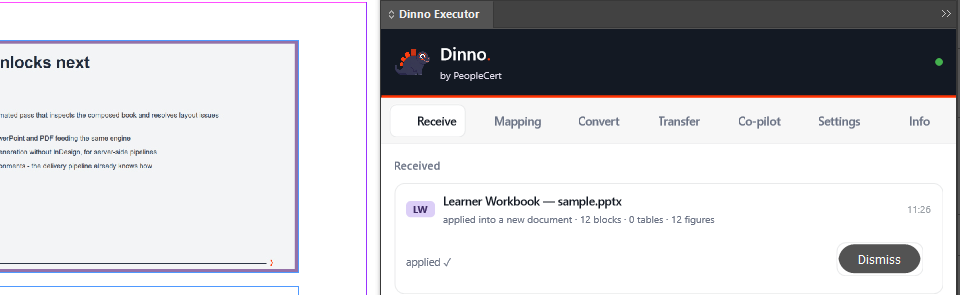
The panel opens on Receive, which is the right tab for once. A build arrives as a row with a purple badge — LW or TG — titled Learner Workbook — ITIL4_FND_Trainer.pptx, with a second line counting what the plan holds: 412 blocks · 0 tables · 295 figures. It sits there, parked, and does nothing.

Press Apply — new document. The panel pulls the plan from the service and builds it into a new InDesign document — not into whatever is open, and not at your cursor. While it works the button is replaced by applying… InDesign stays busy during the run, and that sentence is the only progress indication the Receive tab has: no counter, no bar. InDesign itself is blocked for the duration.
Two things the Receive list will not do for you
It is memory only. Reload the panel or restart InDesign and the list is empty — a build that was parked there has to be sent again from PowerPoint. It holds at most fifty rows. And a plan on the service does not wait forever. Press Apply on a row whose plan has expired and it fails with unknown or expired planId; send it again.
What comes out
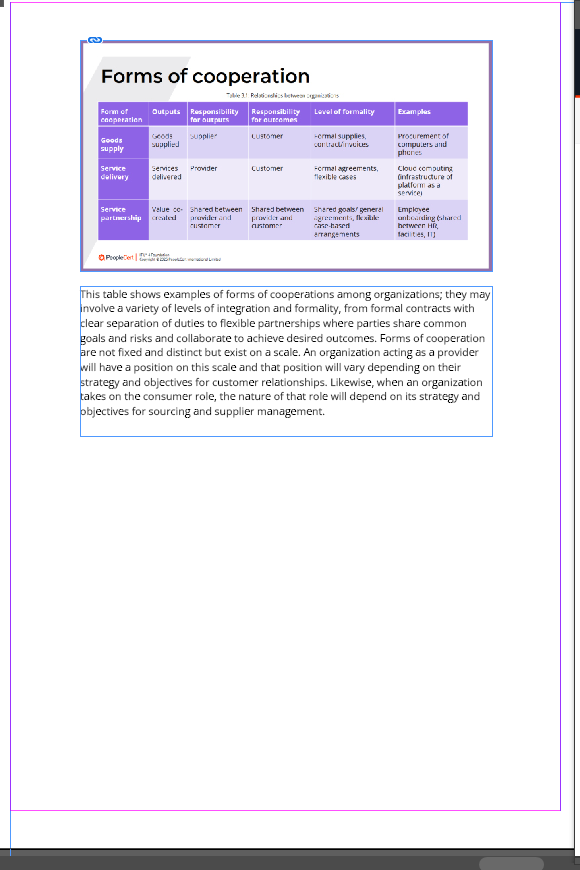
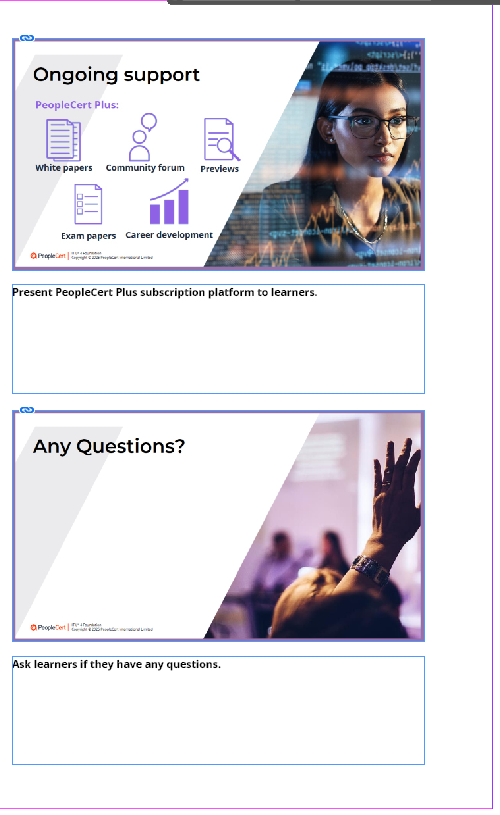
Dinno/TG Slide Thumb object style is declared but not yet applied anywhere.One slide to the cursor
The book run is not the only way in. Click a slide in the deck — or several — and the Selected slide card names what you have: Slide 7 — Understanding experience, or 3 slides selected (2, 5, 9). Press Send slide to InDesign (it reads Send 3 slides when more than one is selected) and each slide is rendered and placed as a picture at the designer's text cursor, straight away, with no consent step in the panel.

The same send is on PowerPoint's right-click menu as Send this slide to InDesign (Dinno) — but only on the menu you get by right-clicking selected text on a slide. Right-click a thumbnail or the empty canvas and it is not there. People look for it in the wrong place.
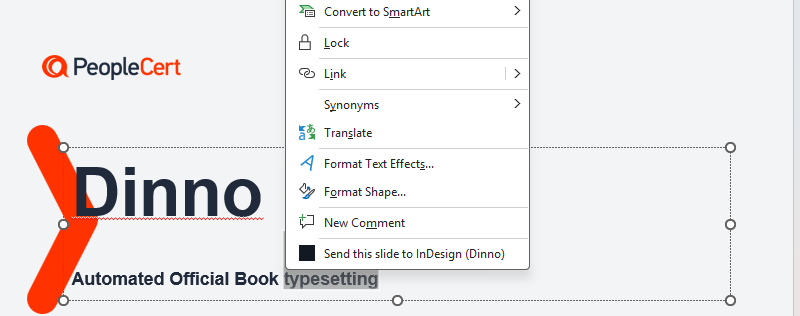
On the InDesign side each slide lands as a green SLIDE row on Receive — Slide 7 — Understanding experience, with where it went: at your cursor, or loaded on your cursor — click or drag on the page to place it. If no cursor was in a text frame the row is red and offers Try again at cursor: click into a frame and press it, and the slide is placed without a round trip to PowerPoint. InDesign's own Undo reverts a landed slide in one step.
The Convert wizard, and the Quiz
Convert is deprecated in 0.8.0 and removed in 1.1. The tab still works in 0.8.0 and says so at its top. A Learner Workbook or Trainer Guide comes from the pane's Deck tab, as Building a book shows, and a Word book comes by the Word transfer. The Quiz is reachable only here and has no other route yet.
The InDesign panel's Convert tab is the older, whole-document route: pick a file, set options, run. It takes a .pptx as well as a .docx, and when it does, two controls appear that exist nowhere else: a Product picker — Learner WB · Trainer Guide · Quiz — and a toggle, Render each slide as an image, on by default.
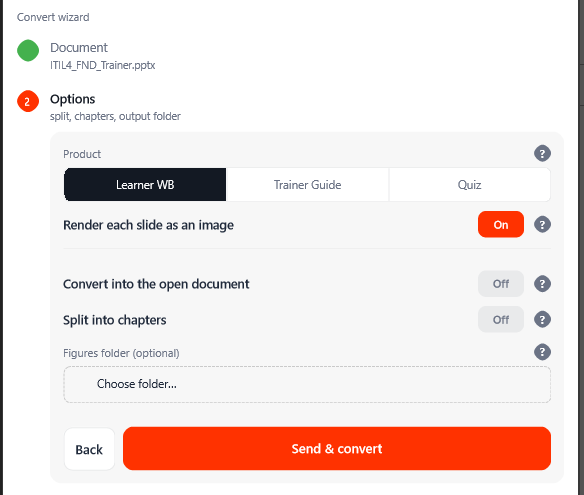
This route is not self-sufficient, and the guide would rather say so than let you find out. The wizard uploads the deck file, but the service only has slide pictures if that exact deck was already rendered by the PowerPoint pane. Pick a deck here cold and every slide comes out as a grey slide raster missing label — and nothing flags it: the figures line reads 0 of 251 and the step turns green anyway. The only other record is one line per slide in the log file, which the panel never shows. The working order is: render or build from the pane first, then convert. With Render each slide as an image turned off the Product choice is ignored and the deck is treated as a plain document.
Everything else on this tab — Split into chapters, the output folder, Create InDesign Book (.indb), the figures folder, Convert into the open document — is the Word-manuscript flow and is described in the site's existing How to use page. One trap carries over: Convert into the open document is a setting that persists across runs, panel reloads and InDesign restarts. Left on, the next convert goes into whatever document you happen to have open.
Settings and pairing
The pane's Settings tab has the same shape as the other two surfaces, and the same one setting that matters on first use.
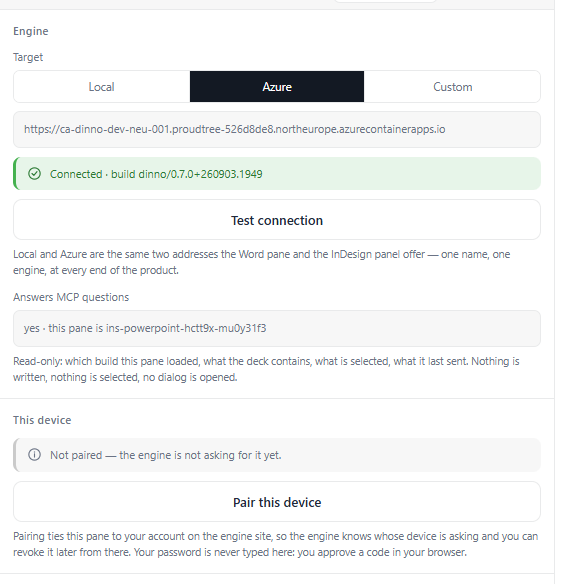
When pairing is asked for: press Pair this device, an eight-character code appears with a countdown, and your browser opens the approval page with the code filled in. The page names what is asking — it will say PowerPoint on PC — and the hint is worth taking literally: approve only a code you just requested here. Your password is never typed in the pane.
What is not finished
Said here once, plainly, so nobody discovers it as a surprise.
- Installing the pane is a developer task. Today it exists only sideloaded from a local server that must stay running. The central route through Microsoft 365 is prepared and not switched on.
- The Report tab is empty by design — a card headed Typeset and one sentence. Nothing ever appears there, not even after a build.
- There is no Stop for a build or a send. The stage line is the only progress.
- One measured run, on one route. On 14 September the Convert wizard built 213 pages in 2 minutes 2 seconds from the 295-slide reference deck, unattended after one press — and every one of its 251 slide pictures was missing, on a step the panel reported green. The PowerPoint pane's own route does deliver its pictures; the wizard has no renderer behind it. Nothing here says anything yet about run-to-run stability on this line.
- The Trainer Guide is not the two-column table yet. It compiles through the same block projection as the Learner Workbook — the slide as a picture with the notes beneath — and differs only in which runs of the speaker notes are kept. The table layout, and the
Dinno/TG Slide Thumbobject style declared for it in the contract, are not built. - Mapping does not reach builds into a new document. The panel's Mapping tab lists, by category, what Dinno sends (In Word) and the style of your template it lands on (In your template), found by name similarity; Change picks another one. A match applies when Dinno sends into your open template: received Word tables, text and boxes, the Word transfer, a Convert into the open document and its contents lists. A build into a new document uses the template contract's own names. Slide rows are shown and taken by name; box parts (a Key Message heading, Tip text) are shown and applied from 1.0. Save to a file and Load from a file share the matches with a colleague; Undo load takes a load back. Styles inside a style group (a folder in InDesign's Styles panel, as in the ITIL5 template) are listed with their group; a name that only looks right — a trailing space, Greek letters typed for Latin ones — never matches, and the tab lists such names under Names to check in your template.
- Leave Co-pilot off. Its status can read Co-pilot connected with the toggle off, its two explanations of what it does disagree, and none of it is part of producing a book.
Part 3
Reference
If something looks wrong
| What you see | What it means | What to do |
|---|---|---|
| Both book buttons greyed, orange line Engine not reachable — check the target in Settings. | the service did not answer | Settings → check Target is the same as the InDesign panel's, press Test connection. If it stays red the service needs starting — an IT task |
| Red line no panel connected — open the Dinno panel in InDesign | the build was compiled, but no InDesign panel was there to receive it | Open the panel in InDesign and press the book button again. Nothing was written |
| Red line your InDesign panel is not connected as you — open it and pair it to your account | the panel and the pane are paired as different people, or only one of them is paired | Pair both surfaces as the same person under their own Settings |
| Red line mentioning pair the Word add-in | several panels are connected and this pane is not paired, so the service does not know whose to use. The sentence really says "Word add-in" even in PowerPoint | Read it as "pair this pane": Settings → Pair this device |
| The build finished and nothing happened in InDesign | nothing announces an arrival; the build is parked on the panel's Receive tab | Click Receive in the panel and press Apply — new document on the row |
| Sent today row ends the panel did not take the plan | the panel received the build but refused it — usually a convert or apply was already running | Let the panel finish, then send again from PowerPoint |
| Apply fails with unknown or expired planId | the plan waited too long on the service | Send it again from PowerPoint |
| The Receive list is empty after a restart | the list lives in memory only | Send again. Nothing was lost on the deck side |
| Checks fills with ! save slide N failed: HTTP 404 | Save PNGs to disk is on and this is not a developer machine | Turn it off under Render. The render itself succeeded |
| this PowerPoint build cannot render slides (getImageAsBase64 needs PowerPointApi 1.8) | a perpetual or LTSC PowerPoint | Use a Microsoft 365 build. Check Info → PowerPoint APIs |
| A slide send lands as a red SLIDE row | no text cursor was placed in a frame in InDesign | Click into a text frame and press Try again at cursor on the row |
| Settings changes seem ignored after an update | PowerPoint keeps running the old pane code even after the pane is closed and reopened | Restart PowerPoint. Info → Loaded build shows which code is really running |
| The Report tab is empty | expected — it is a placeholder | The result of a build is on the InDesign panel's Receive tab, and the receipt under Sent today |
The template contract
The old scripts expected these swatches and styles to exist in the InDesign templates, and created them badly when they did not. Dinno carries them as one versioned file and reports what it had to create. These are the names a designer will meet.
| Name | Kind | Used for |
|---|---|---|
ITIL 4 | swatch, #8F63E5 | the core stroke around a slide picture — 3 pt in both books today, because the panel decides the stroke from the slide's class alone. The contract still carries the Trainer Guide's 2 pt as a question for the design team, but nothing reads it yet |
mono 2 CMYK | swatch, #C5C5CA | the non-core stroke, 1 pt in both. Missing from the old Trainer Guide template, which is why every old run printed it in RGB |
paragraph main | paragraph style | every learner-note paragraph in the Learner Workbook |
SLIDE_TITLE | paragraph style | the slide title line in a Trainer Guide cell |
Slide number | paragraph style | the thumbnail line and the Slide N label in a Trainer Guide cell |
Question · Quiz - ABC · Quiz - answer box · Quiz - correct answer | paragraph styles | the quiz book: stem, options, the anchored answer box, the one correct option. The last name is resolved case-insensitively — the old script's crash on a capital letter is gone |
A style the template lacks is created from a real specification and named in the run's report. A style the template already has under exactly that name is left as yours.
Glossary
| Term | Meaning |
|---|---|
| Learner Workbook (LW) | The book the course participants hold: A4 facing pages, each slide as a picture with the learner's notes beneath it |
| Trainer Guide (TG) | The trainer's book: today the same block layout as the Learner Workbook — each slide as a picture with the notes beneath it — carrying the bold runs instead of the regular ones. The old chain's two-column table, thumbnail beside notes, is the target and is not built |
| Quiz | The third projection: questions, options and answer keys drawn from the assessment slides. Reachable only through the Convert wizard's Product picker. Convert is deprecated in 0.8.0 and removed in 1.1; the Quiz has no other route yet |
| Channel | How one speaker-notes field carries two audiences: regular weight is the learner's text, bold is the trainer's. Bold is consumed as the routing key; italic and underline survive inside the kept channel |
| Projection | One reading of the deck turned into one book. The Learner Workbook and the Trainer Guide are two projections of the same reading, which is why nothing can fall between them |
| Core / non-core | Whether a slide is examinable content or supporting material. Core slides carry the purple stroke, non-core the grey. Today it is decided by the slide's layout name, then its title, then its position — first four and last of the slides that survive. You see that list, with the rule for every row, before the build starts, and pressing a chip changes it. In the old chain the same decision was a title pattern plus a hand-kept list of 151 slide numbers pasted into a prompt on every run |
| Build | A book plan compiled by the service and parked on the InDesign panel's Receive tab, which does nothing until Apply — new document is pressed |
| Fragment | A single slide sent to the designer's cursor. It lands immediately, with no consent step, and shows on Receive as a SLIDE row |
| Render | Turning a slide into a picture with PowerPoint's own renderer — the same pixels File → Export produces — at 2,560 pixels wide |
| Sent today | The pane's own receipt list: every send and build attempted in this pane session, newest first, with a verdict |
Where the numbers in this document come from
Counts of the deck and of the old scripts are taken from the project's own analysis of the ITIL 4 Foundation trainer deck and of the designers' macros and scripts, each traced to a line. No number here is a timing, because no timed run of this line exists yet; when one does, it goes here.